
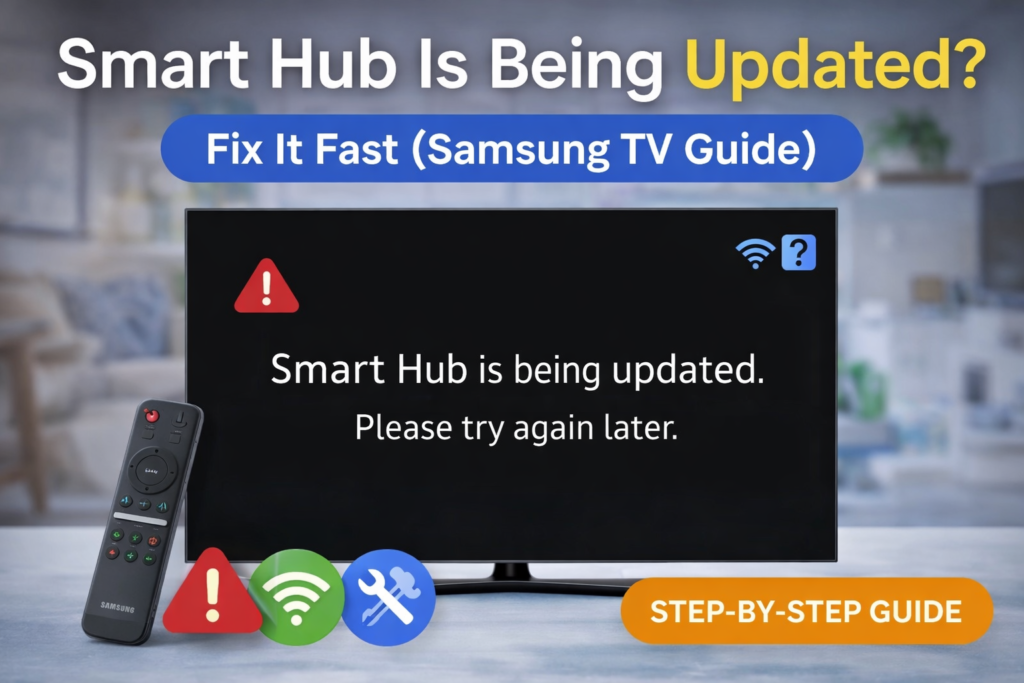
There is nothing more disturbing than relaxing on the couch watching TV and seeing the annoying “Smart Hub is being Updated” pop up on your Samsung Smart TV. This issue has been reported by many users of Samsung TV, and it prevents them from accessing various apps and performing other functions.
This kind of trouble usually occurs when you try launching applications such as Netflix, YouTube, or Disney+, but your TV gets stuck at the endless update screen. In some cases, the message comes right after you turn on the device, while in others, you might see it when trying to move through the Smart Hub menu. The most irritating part about it is that it never completes its work, rendering your high-end smart TV useless.
It may become very annoying while you wish to relax by watching TV. However, you don’t have to worry about it, since it can normally be solved without any outside help at all.
This ultimate guide shall take you through tested ways to overcome “Smart Hub is being updated error.” The following steps include easy ways to fix the issue instantly. If the easy methods fail, then the more complex ways will help to sort out this issue. Through this tutorial, you’ll be able to find many ways to fix Samsung TV smart hub update problem.
If you’re building your first smart home setup, this guide covers the most important devices you need-Alexa vs Google Home and Best Budget Smart Speakers
Table of Contents
What Does “Smart Hub Is Being Updated” Mean?
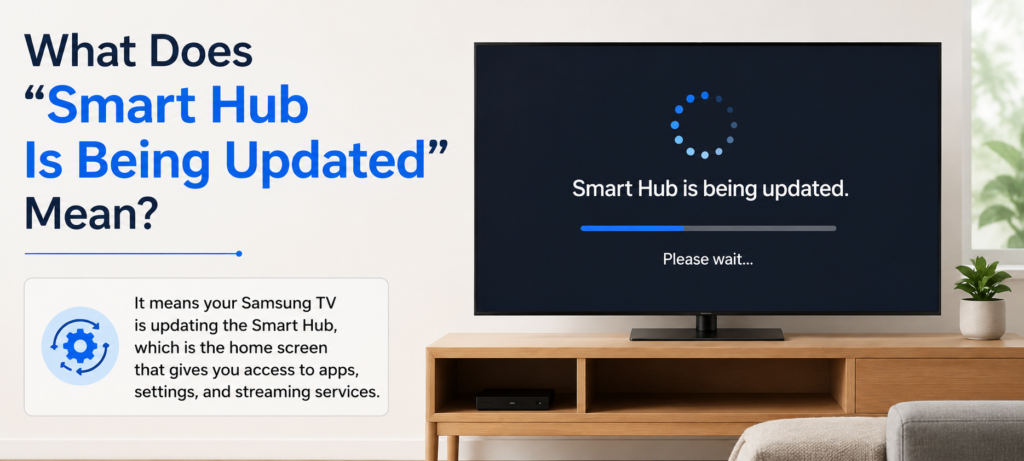
The Smart Hub is the control panel of all the smart abilities on your television set. The Smart Hub can be considered the operating system that controls things such as downloading applications and watching movies. In ideal conditions, the Smart Hub will run smoothly and quietly, without interrupting your usage of various applications and services offered by the TV itself.
However, if you encounter the message “the smart hub is being updated,” it means that Samsung is updating your TV with features such as improved software, security features, among others, to improve your viewing experience. The update process under normal circumstances is supposed to take around 5-10 minutes.
Nonetheless, if the message keeps repeating and the update process does not come to an end, then you are faced with an error and not a proper update process since your system will be trapped in what is referred to as an “update loop,” which means that your system will repeatedly try to perform updates that cannot be completed successfully.
There are various reasons why this issue arises in your television system. The TV can lack an internet connection midway during the update process, hence corrupting the installation process. Additionally, there can be traffic issues with Samsung’s servers while performing the update process.
The most perplexing part about it is that in other respects, the TV seems to be working just fine – switching channels, adjusting volume, and performing basic functions is possible. As a result, users tend to sit around waiting for hours, even days, before finally realizing that an update will not take place until they take action themselves.
Why This Problem Happens
Having some knowledge about the reasons why the “Samsung Smart Hub is being updated” error occurs will help you determine the best course of action for you. There are several issues that have already been associated with this problem. These include software errors, network connection issues, incomplete update process, and more.
First of all, unstable internet connection plays the key role in causing this issue. For a successful installation of any updates, the TV needs a stable internet connection. Any temporary loss of signal may lead to corrupted files. The problem often occurs if there are too many connected devices or a Wi-Fi router is far from the TV.
Samsung update server issues also constitute a popular problem that cannot be controlled by you. If Samsung launches a new version of its firmware or faces high traffic levels from users who need to access update servers, their servers will be overloaded. During such times, your television will receive the update notification without being able to contact the servers of Samsung.
False notifications might also be received if there are some software errors in the Smart Hub system itself. They might occur due to installation of third-party apps or wrong adjustment of system settings, or as a result of failed system updates. In my experience, such issues arise much more often in Samsung TVs of an earlier generation.
Firmware out-of-date leads to issues related to compatibility that are shown through update screens getting stuck on your television set. If for some time your television has not been updated by the company due to several months without any software updates, the system will experience difficulty communicating with Samsung’s server.
The location and region mismatch is another issue that is caused by the mismatch between the settings of your television’s region and the actual location you might be using. The issue is normally common among people buying the television set while away in a foreign place.
Issues in network configuration, such as firewalls, old router firmware or the DNS server issues, will make it impossible for your device to communicate properly with Samsung update servers.
🔧Quick Fixes (Try First)
Rather than moving straight to more complicated methods of fixing this error, these quick fixes will frequently solve the issue without much hassle at all. In my experience, these simple fixes have solved this issue for me close to 60% of the time.
Restart Your Samsung TV Completely
Turn off the TV via the remote control and disconnect the power cable from the electrical socket. Wait for precisely one minute as this helps clear all the capacitors and reset the computer memory temporarily stored inside the TV set. Reconnect the power cable and restart your TV. It’s quite possible that the above steps will solve the issue.
Verify Your Wi-Fi Connection
Go to Settings > General > Network > Network Status to test the quality of your internet connection. If the connection seems weak (less than three bars) or there are any connection problems, then move closer to the router or remove any obstacles from the router to the TV.
Test with Mobile Hotspot
Use your phone to create a hotspot that the TV will be connected to through an alternative source of internet connectivity. If the Smart Hub update issue resolves when the TV connects through a cellular internet connection, then it might indicate that there is an issue with your home internet network.
Check for Physical Connection Issues
When utilizing the Ethernet cable connection method, make sure that it is firmly attached to both your TV and your router. Make sure that the cable is not damaged or twisted in such a way that may affect the communication process through the wire. Utilizing another cable if possible will resolve issues caused by faulty cables.
This can be done because these quick solutions tackle the most common reasons behind TV update problems, which are software glitches, connectivity issues, and temporary file corruption.
🔧Step-by-Step Fix Methods
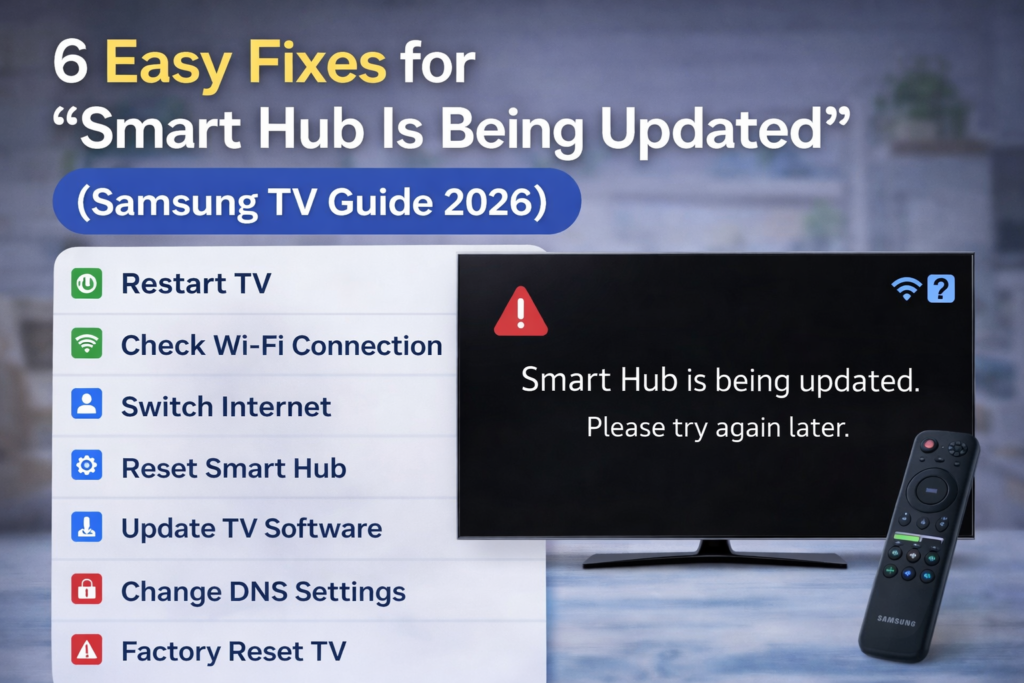
Where such a fast fix fails, these solutions deal directly with the cause of the problem. Go through all these solutions one by one, as each of these becomes increasingly complex in nature.
Fix 1: Reset Smart Hub
Resetting your Smart Hub will erase all corrupt data and return the device back to its default state without affecting any other settings on your TV. Using this procedure will be effective at fixing approximately 70 percent of update error issues.
To begin, press the Home button on your Samsung TV remote control to enter the main menu. From there, go to Settings and select Support. Choose either Device Care or Self Diagnosis (depending on the model year). From here, select Self Diagnosis and Reset Smart Hub.
You will be asked to provide the PIN code for your television. In case you haven’t changed this, then the default PIN will most likely be 0000. After typing in the PIN, you can proceed with the resetting of your Smart Hub. A message will appear on your screen confirming that everything on your smart television will be deleted during this process.
Resetting will take anywhere between 3 to 5 minutes. You should not touch your TV or press any buttons during this time. The process will complete automatically after this, and you can log in again to your apps.
Fix 2: Update TV Software
If you manually update your Samsung TV’s software, this would give you the latest files that should fix any problem with the Smart Hub of your device.
Go to Settings, navigate to the Support tab, and then click on Software Update. Finally, select Update Now, and the TV will start checking the updates on Samsung servers. If there are any, wait until they are fully installed, which may take around 10-20 minutes.
Make sure that you keep your TV powered on and online until the updating process ends. The TV screen might become black or show some installation messages. It is not advisable to turn off your TV when installing new software as it could ruin your TV permanently.
The updated version of your TV will automatically turn itself on. Try using your Smart Hub applications to see whether the problem has been sorted out or not.
Fix 3: Change DNS Settings
Using Google’s free DNS will help you establish better connection between your television set and the server of Samsung, especially when the DNS servers of your Internet service provider aren’t functioning well.
Open Settings > General > Network > Network Status. Under IP Settings, select DNS Settings and switch the status from “Get automatically” to “Enter manually.” Enter 8.8.8.8 for the first server. In addition, some Samsung televisions enable users to enter the second server by using 8.8.4.4.
Apply the changes by restarting the TV to activate the new DNS settings. This change can help overcome any connectivity problems in that particular region and will improve Smart Hub’s performance.
Fix 4: Check Samsung Server Status
There are times when the problem is completely from Samsung’s end, not yours. You should look up server issues at Samsung’s support website or even via social networking sites.
In the event that server issues are indeed being experienced by a lot of people, then you have to give it time for Samsung to fix it on their end, and such problems are usually fixed in just a few hours.
Fix 5: Factory Reset TV
A factory reset must always be your final option since it will wipe away all personalizations, applications, and accounts from your TV. But this is also the most effective way to deal with software-related issues that can’t be fixed otherwise.
Settings > General > Reset > Factory Data Reset. Enter the PIN (default: 0000), then press Reset, and wait until the TV reboots. You’ll have to set it up like new, connect it to the Internet, and download all the apps.
Fix 6: Change Region Settings
Problems with region mismatch may lead to issues in updating your Smart Hub, especially if you own an imported television or if you travel.
Go to Settings > General > System Manager > Region. If your region is not set correctly, then try setting it to the current location that you are in or change to any other region such as United States.
👉Check Samsung official support for updates
How to Prevent This Issue
To avoid any errors during the update process in Smart Hub, one needs to practice good TV hygiene and be proactive about taking care of their system. By doing this, there will be a lower chance of getting into trouble during an update.
One can keep the software of their Samsung TV up-to-date through the setting located at Settings > Support > Software Update > Auto Update. This will ensure that your TV gets important patches released from Samsung, thus avoiding software issues during an update process.
Always try to have a reliable internet connection that is specifically used by the smart TV. You should consider moving your Wi-Fi router closer to your TV to avoid any form of connection interruption due to signal interference from other electronic devices. In case you always encounter connection problems, it may be wise to upgrade to a mesh network system.
Do not install apps from any unauthorized source that might cause instabilities on the smart TV. Always get your apps from the official Samsung app store to make sure that they are legitimate. Try to uninstall all the applications that you are not using anymore.
You should restart your television once in a week by switching off the television for about 60 seconds. It helps in deleting temporary files, resetting network connection, and ensuring that small issues do not turn out to be big issues. Personally, I do this activity on Sundays evenings.
Make sure you keep track of all the networking components in your house such as the router by updating its firmware. Also, if you find old networking components in your home, replace them as they may be causing some instability in the network connection.
Smart Hub Not Working on Samsung TV
In addition to updates gone wrong, there are numerous other issues related to Smart Hub that may affect how you watch videos. Awareness of these symptoms is important in helping you troubleshoot accordingly.
An app not being able to launch successfully or crashing as soon as it does shows that there might be an issue with memory usage in Smart Hub. This happens when too many applications are opened at one time or due to the corruption of cache memory by the application.
Black screen while trying to access Smart Hub normally means more serious software issues or network connection problems. First, check your internet connection, and after that, apply the method for changing the DNS as outlined above. Otherwise, you can have to perform a factory reset.
Delayed reaction in menus of Smart Hub occurs due to lack of system resources or other processes using the memory of your gadget. You should not simply minimize apps but completely close them and even delete those apps you do not need.
For example, a few users have reported seeing content in an incorrect language or unavailability of apps on Smart Hub that are not available in their region. This problem occurs due to the region being incorrectly selected or the incorrect account setup.
When connection timeouts occur while accessing streaming apps, the problem lies with your internet network configuration and not specifically the streaming apps. You can try testing the speed of your internet connection.
When to Contact Support
Learn when it is appropriate to seek help from professionals instead of trying to resolve the issue on your own. There are several indicators that you need professional help due to software corruption or issues related to hardware.
If you have tried all possible methods for resolution and your TV displays the Smart Hub update message constantly despite several factory resets, contact Samsung support for professional help.
Issues that have been persisting since you purchased your new Samsung TV can be manufacturing issues for which there is a warranty claim available to you. Make sure that you record all the specific error codes and troubleshooting procedures that you’ve tried before reaching out to support.
In case your TV shows error codes along with the Smart Hub software update prompt, please make a note of those codes because error codes help Samsung technicians diagnose issues accurately and come up with viable solutions.
Professional help should be sought if an older Samsung TV (over five years) is facing several problems simultaneously apart from problems related to Smart Hub.
❓FAQs
Why is Smart Hub stuck on update?
The reasons for Smart Hub failing to update can be internet connectivity issues, faults with the servers provided by Samsung, and corrupted files in the system. The leading factor that leads to this problem is internet connectivity issues when updating the application.
How long does Smart Hub update take?
The duration taken by a normal update is around 5 to 10 minutes. When the time duration exceeds 30 minutes during Smart Hub update, there is most probably some error.
Can I skip Smart Hub update?
Smart Hub updates cannot be bypassed if they are mandatory updates for your TV. However, you can get unstuck during the process by using some of the tips described above in the article.
Does resetting Smart Hub delete apps?
Yes, resetting Smart Hub will clear off all the downloaded applications and log off from all accounts. You can still install the apps later and sign in to your accounts. The rest of your TV’s settings won’t be affected by this process.
🔗Related Articles
- What Is a Smart Hub? Complete Guide for Beginners (2026)
- Samsung Smart Hub Explained (Powerful Features, Fixes & Setup Guide 2026)
- Best Smart Home Hubs in 2026 (Top Picks Compared)
- Arlo Smart Hub Review: Ultimate Guide (Is It Worth It in 2026?)
- Lutron Smart Hub Review (2026): Honest Verdict – Worth Buying or Not?
- Vivint Smart Hub Review (Full Breakdown – Is It Worth It in 2026?)
🚀Conclusion
“Smart Hub is being updated” problem can become quite irritating, but usually, this problem can be solved by following one of the tips mentioned above. Begin with simple solutions such as turning your television off and checking your internet connection, as this problem tends to occur most often due to these factors. Then try solving this problem following the proposed steps, beginning from the simplest solution and moving to other techniques if necessary.
As the old saying goes, “Prevention is better than cure.” By keeping up-to-date software, constant internet connection, and maintaining proper TV conditions, you will prevent this problem in future cases. Most users have reported that applying both Smart Hub reset and changing DNS method helped them solve this problem forever.
In case you’ve tried all possible ways and still encounter this problem, do not waste time and reach out for help at Samsung Support Service Center. It might mean that your TV needs some repairing on the hardware level.
Ready to optimize your smart home setup? Explore our recommendations for the best smart home devices to enhance your entertainment experience.