
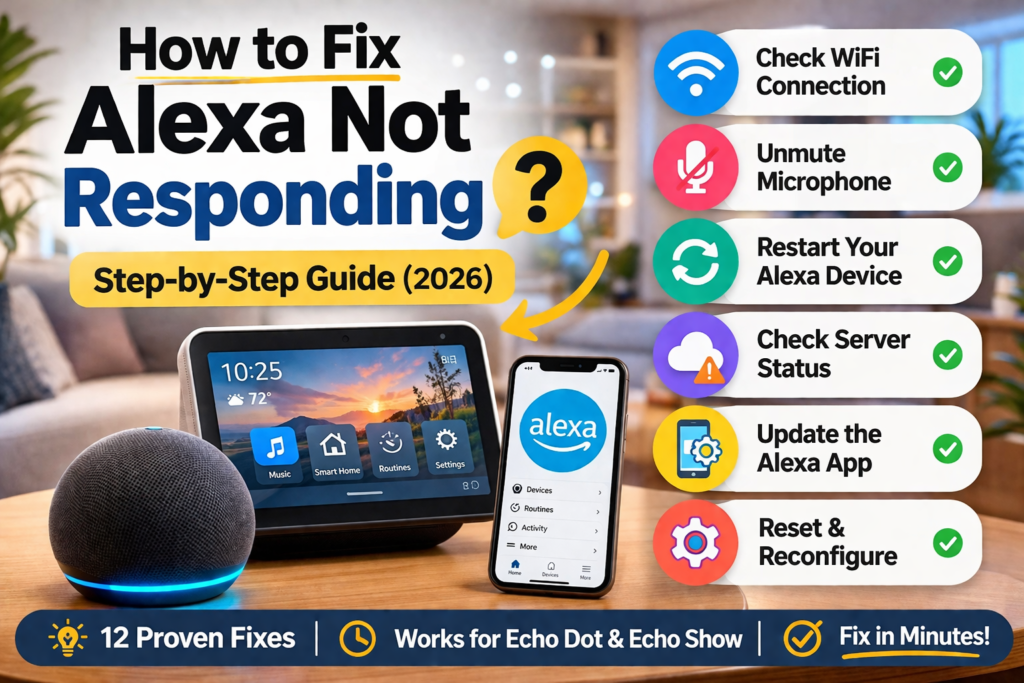
Is your Amazon Alexa Echo Dot or Echo Show suddenly unresponsive to your voice? Don’t worry because it happens to plenty of people out there. There may come a time when your Alexa device simply refuses to do anything for you – it doesn’t respond to your commands, it won’t play any songs, it can’t control any of your smart home devices, and so forth.
The bright side of things is that almost all problems that occur with Alexa devices are usually caused by minor factors such as connection troubles, microphone malfunction, obsolete software versions, power issues, or other kinds of glitches related to the user’s account.
Luckily enough, in a vast majority of cases, you can easily bring your Alexa device back to its full functionality within only a few minutes without having to rely on professionals.
It makes no difference whether you have an Echo Dot, Echo Show, Echo Pop, Echo Studio, or any other kind of Alexa device because it should take little effort to find out the cause of trouble and solve it.
In this tutorial, you will learn the most common causes behind Alexa unresponsiveness and how to fix your device quickly.
Table of Contents
Why Is Your Alexa Device Not Responding?
Before proceeding with troubleshooting solutions, it is essential to know what makes your alexa device unresponsive. Having dealt with similar issues concerning amazon echo devices used by my friends and family members, here are the major reasons:
WiFi Connection Problems: 60% of amazon echo devices become unresponsive due to problems with Wi-Fi. An alexa speaker needs an active Wi-Fi network to be able to process voice commands.
Muted Microphone: The mic on/off button may get accidentally pushed making it impossible for your device to hear you. Children in the house often do that.
Outdated Amazon Alexa Application: Your alexa amazon application needs to be regularly updated in order to maintain the connection between the app and your device.
Server Problem: Rarely, server malfunctions occur, which makes all alexa amazon devices unavailable throughout the world.
Glitch: It is also possible that your device simply froze and will work just fine after being rebooted.
12 Fixes for Alexa Not Responding (Step-by-Step)
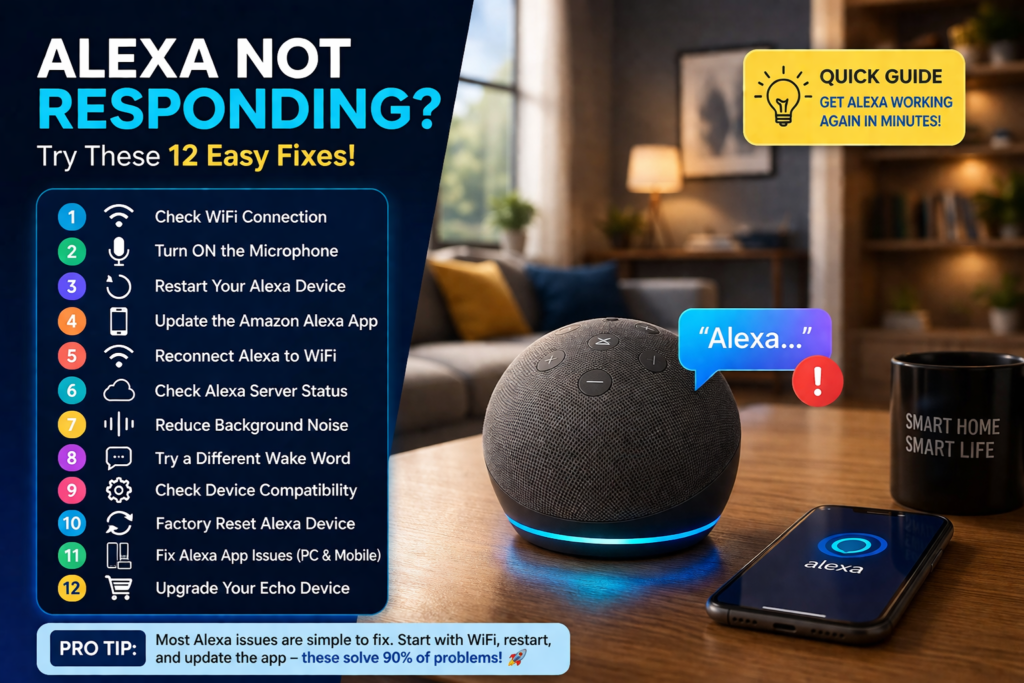
The following section will address your alexa issues. I have ordered these solutions based on their difficulty level.
1. Check WiFi Connection (Amazon Echo Devices)
This solution can be applied to all devices: echo dot, echo show and alexa speakers.
First, check if your alexa device is connected to WiFi:
- The light ring of your amazon echo device indicates whether the WiFi connection is established. If it’s orange, then you don’t have a WiFi connection.
- Connect to your WiFi in your phone settings and ensure that your WiFi is active.
- Check your Internet connection by opening any webpage in your phone using the same WiFi.
- If your Internet is not working, unplug the power of your router for 30 seconds.
Echo devices appear to be more prone to WiFi problems than mobile devices. Your WiFi may be perfectly working for your phone but not for your alexa.
2. Restart Your Alexa Device
A quick fix that applies to all amazon echo and echo dot devices:
- Disconnect your alexa device from its power supply
- Wait for 30 seconds
- Plug it back in, give it one to two minutes to restart
- Then try issuing a voice command like “Alexa, tell me the time”
From personal experience, this fixes roughly 40% of all alexa responding problems.
3. Make Sure Microphone Is ON
This solution works for alexa echo dot and alexa echo show:
- Look for the microphone button at the top of your device
- If there is a red light or red ring at the top, this means that the microphone is disabled
- Press the microphone button once to re-enable it
- Red light will stop blinking and a sound confirmation will be heard
It is very easy to miss this step, particularly when the microphone button has been pushed by mistake. Proceed with more complicated troubleshooting only after this step has been completed.
4. Update the Amazon Alexa App
Use these steps to update your amazon alexa app:
- Open the app store of your phone (Google Play/Apple App Store)
- Search for “amazon alexa app” or “alexa app download”
- Tap “update” if there is one to get the newest version
- Or simply unistall and install the app again if it is already up to date
Pro tip: : If you are facing some difficulties then get the alexa app downloaded fresh from the store. Corrupted alexa app file may create problems with communication between the app and your device..
📱 Android (Google Play) 👉 Download Alexa App (Android) 🍎 iPhone (App Store)👉 Download Alexa App (iOS)
You can download or update the Alexa app from the official Amazon website or your app store:
5. Reconnect Alexa to WiFi
This is an applicable solution for all amazon alexa devices:
- Launch the Alexa application on your phone
- Tap on Settings > Device Settings
- Pick out your alexa device from the list
- Select “WiFi Network” and tap “Change”
- Re-enter the password for your internet connection
- Give time for the process (takes around 1-2 minutes)
It is advisable to follow the process regardless of whether or not the device is connected in the app.
6. Check Alexa Server Status
Sometimes alexa amazon services experience outages:
- Look up Amazon’s status page, or search “Alexa down” on Twitter
- Visit sites such as DownDetector for live updates
- In case of server downtime, give it about 30 minutes before trying again
- Problems with servers get solved within 1-2 hours
When an outage is widespread, many people will experience the problem at once. In that case, there’s nothing much that can be done other than wait.
7. Reduce Background Noise
The above will help with the detection by alexa speaker and smart speaker alexa:
- Switch off TV, music, or any fan close to your device.
- Get closer to the alexa device while giving the commands (six feet is ideal).
- Be clear and use normal volume while talking.
- Repeat the command in a quieter environment.
Smart speakers use their internal microphones to recognize voice commands, and high background noise can affect that process.
8. Change Wake Word
Try changing your wake word from “Alexa” to another one:
- Open the Alexa app and go to Settings
- Select your device
- Click on “Wake Word” and choose “Echo,” “Computer,” or “Amazon”
- New command to try: “Echo, what is the weather?”
Your default wake word “Alexa” might stop working because of some bugs in the software. Changing it will restart the recognition system.
9. Check Device Compatibility
Older echo devices may face problems regarding their performance:
- Find out how old your alexa device is
- Devices that are 4-5 years old may be too old to work efficiently
- Check whether there are any update alerts in your Alexa app
- If your device was bought 4 years ago, consider updating it
Many Echo devices work great for years, but the older devices might have problems with some new features and Alexa functions.
10. Factory Reset Alexa Device
As the last resort method, you can consider doing a factory reset on your device in case the other solutions do not work.
For Echo Dot:
- Hold the Action button for approximately 25 seconds.
- The light ring will first turn orange and then blue.
- Allow your device to boot back up into the setup process.
For Echo Show:
- Slide down from the top of your device’s display screen.
- Select Settings > Device Options > Reset to Factory Defaults.
- Confirm the reset
Warning: Doing a factory reset will wipe out all settings and Wi-Fi information from your device.
11. Fix Alexa App Issues on PC & Mobile
For alexa app for pc and alexa app download for android:
- On PC: Open Microsoft Store and search for “Amazon Alexa”
- On Android: Download the alexa app for android from Google Play Store
- On iPhone: Download the app from App Store
- Clear the app cache (for Android) or uninstall and reinstall the app
- Login to the app using your Amazon account
At times, there may be problems with the app which cause issues in communicating with your device.
12. Update or Replace Your Alexa Device
When all else fails, think about upgrading to:
- Visit the Amazon website to see new alexa devices
- Some popular upgrades include Amazon Echo Dot (5th Gen) and Amazon Echo Show 8
- They come equipped with better processors and superior voice recognition systems
- Consider Amazon’s trade-in program to get some money off the cost of your replacement device.
Newer alexa devices have an advanced processor, better microphones, and smart home features.
Quick Fix Table
| Issue | Device | Fix |
|---|---|---|
| Alexa not responding | Echo Dot | Restart device |
| Alexa offline | Echo Show | Check WiFi connection |
| Alexa app not working | Mobile/PC | Update app |
| Voice not detected | Alexa speaker | Reduce background noise |
| Microphone issues | All devices | Check mute button |
| Connection problems | All devices | Reconnect to WiFi |
Fix Alexa App Problems (Download & Setup)
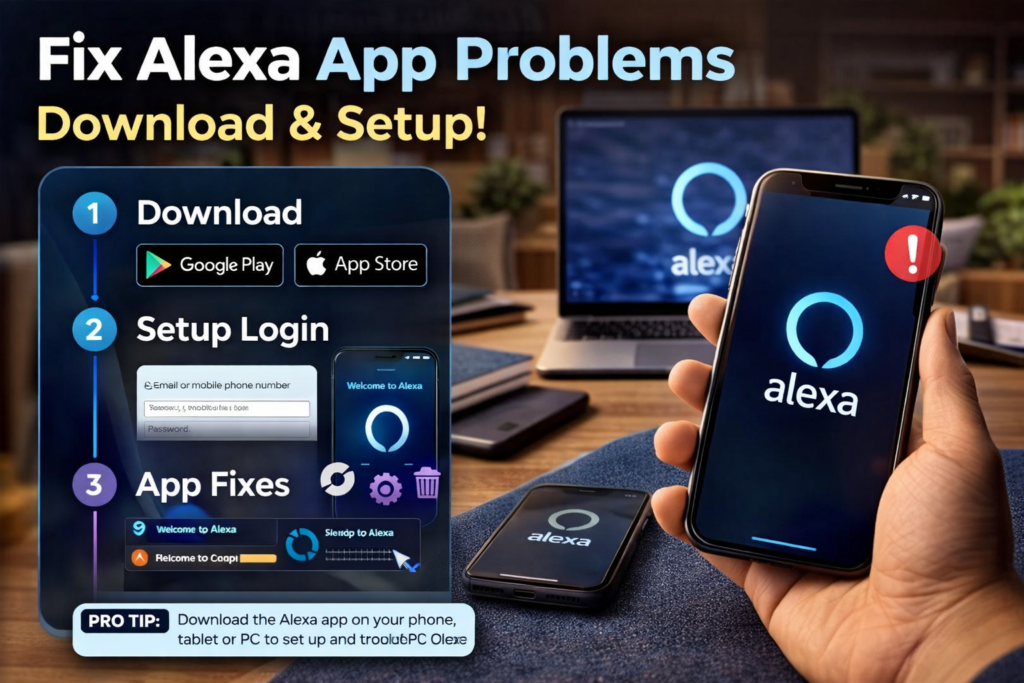
Alexa App Download & Installation on Device is important for managing the device. Here are solutions to the problems of the app:
Download Process:
- Search “alexa app download” in app store of your device
- Download amazon alexa app only from credible sources
- Don’t use third-party app store with old version of app
Setup Issues:
- Use the same account that is associated with alexa device
- Grant permissions for microphone and location
- Connect your phone to WiFi network of your alexa device
Login Problems:
- Change your Amazon password in case of login issues
- Clear app cache and login again
- Ask for help from Amazon customer support in case you are locked out of your account
It is essential to use updated Alexa app for ensuring proper setup, synchronization, and smart home management.
Which Alexa Devices Have This Problem Most?
In regards to the users’ feedback and personal experience, here is the list of the best and worst devices in terms of responsiveness:
Echo Dot (1st and 2nd generation): The older versions suffer from the lack of processing power and outdated hardware.
Echo Show (1st generation): The old version has difficulties with new software updates and gets unresponsive.
Amazon Echo Speakers (3rd generation and higher): The amazon echo speakers have less problems but sometimes suffer from the WiFi connection troubles.
Alexa Smart Speaker (4th generation): The newer devices have few problems with responsiveness, but they can still face WiFi and application troubles.
If you have an old device and have troubles with responsiveness, buying a new one could be the better way.
When to Upgrade Your Alexa Device
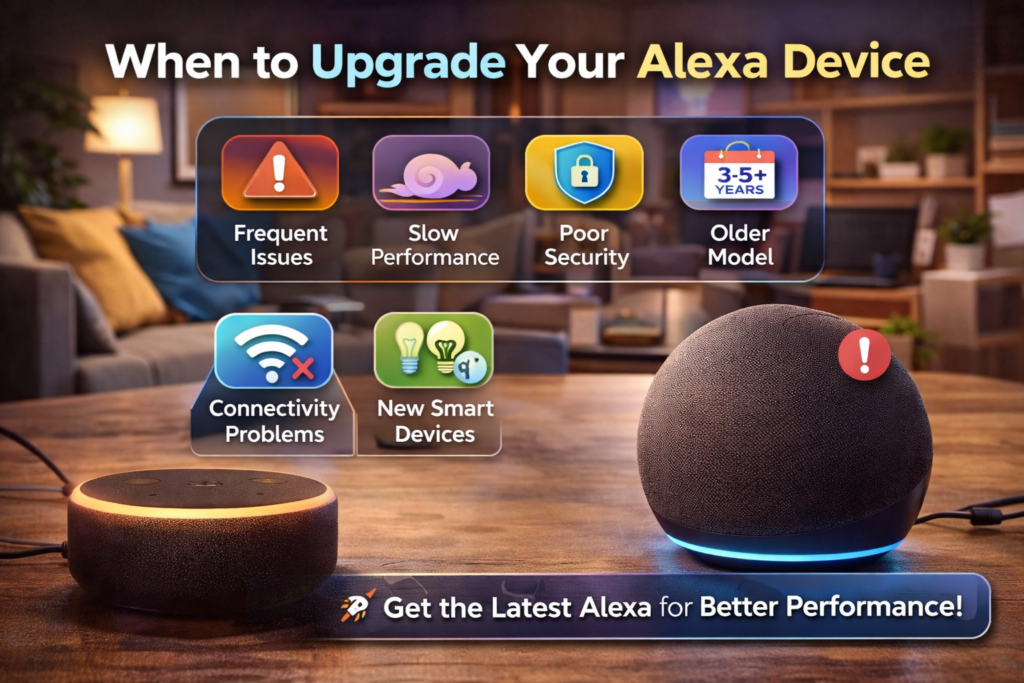
Think about getting new Alexa devices if:
- Your existing device is more than 4 years old
- You face daily response problems
- Amazon ceases to support your device model
- You want improved sound quality and additional functions
Recommended Upgrades:
- Amazon Echo (4th Gen): Best of all around smart speakers with better sound
- Amazon Echo Show 5: Ideal for nightstand placement with small size
- Echo Dot (5th Gen): Ideal budget smart speaker with amazing sound
The latest Amazon Smart Speaker Echo devices have faster processors, improved microphones and better WiFi connectivity.
❓FAQs
Why is my Alexa not responding but lights are on?
If you have lights lit up on your alexa but it is not responding, then it simply means that either your microphone is muted or it is facing some issues with Wi-Fi connectivity.
How do I reset my Amazon Alexa device?
Factory resetting of most amazon echo devices involves pressing the Action button for 25 seconds until the light ring turns orange and then blue. For Echo Show devices, follow settings > device options > reset to factory defaults.
Why is my Echo Dot not connecting to WiFi?
Echo Dot issues with Wi-Fi connections are due to weak signal strength or password entry errors. Take your echo dot closer to your router and enter your credentials in the Alexa application.
How to download Alexa app on Android or PC?
Alexa application on Android is available at Google Play Store under alexa app download for android. Similarly, on PC, you need to head over to Microsoft store.
What is Alexa Plus?
What is alexa plus? Alexa Plus is the name of premium features that can be accessed by subscribing to Amazon services such as Amazon Music Unlimited and Audible, offering increased functionality compared to regular Alexa features.
Can Alexa work without WiFi?
Alexa requires an internet connection to function properly since most features like voice commands, streaming music, weather reports, and smart home control rely on internet access. In case there is no WiFi connection, Alexa will be able to perform just a few functions.
Why is Alexa flashing blue but not responding?
Blue lights indicate that Alexa is processing something or is just turning on. If it shows blue light and doesn’t respond, make sure there is internet access and that Amazon services are functioning properly.
Why can’t Alexa hear my voice?
Inability to hear user’s voice may occur if Alexa’s microphone is off or due to high levels of background noise or distance between user and device.
How do I reconnect Alexa to WiFi?
To connect Alexa back to WiFi, open the Alexa app, tap Devices > Echo & Alexa, select the device, and then choose Change WiFi Network.
Does unplugging Alexa reset it?
When you unplug your Alexa device, you will only initiate a device restart but won’t be able to wipe its settings. For a complete factory reset, you have to use the device options.
Why is Alexa saying “I’m having trouble understanding right now”?
It means that there is some connection problem or problems on Amazon servers side. Make sure your device is connected to WiFi and then wait for a minute or two before trying again.
How often should I restart my Alexa device?
It is recommended to restart your device every few weeks to clear minor software errors and restore good performance.
Can an outdated Alexa app cause connection problems?
Yes. Using an old Alexa app can sometime lead to synchronization and connectivity problems. Update your Alexa app and Echo device software to the latest version.
Why does Alexa keep disconnecting from WiFi?
Disconnects from WiFi are mostly due to low signal strength, problems with the router, internet congestion, and old firmware. Try to place the device closer to the router for better performance.
When should I contact Amazon Support?
When you have tried all troubleshooting steps, did a factory reset, but your Alexa device is still unresponsive, then the problem may be hardware-based. Then reaching out to Amazon support would be the best thing to do.
🔗Related Articles
- Alexa vs Google Assistant: Complete Comparison Guide
- Best Smart Speakers Under $100 (2026 Buying Guide)
- 10 Best Smart Home Devices for Beginners (2026 Guide)
- Alexa Keeps Disconnecting? 12 Powerful Fixes That Work Instantly (2026 Guide)
- Amazon Echo Dot (5th Gen) Review (2026) – Is It Worth It?
- Best Smart Speakers for Small Apartments (2026 USA Guide)
- Best Bluetooth Speakers 2026: Shocking Smart Home Picks Under Budget
- Hidden Features of Alexa You Didn’t Know (2026 Guide)
- Alexa Home Automation (2026 Guide): How to Build a Smarter Home
🚀Conclusion
Almost all of the problems related to Alexa can be sorted out easily with the right method of fixing the issue. Based on my personal experience, simply restarting the device with WiFi troubleshooting and updating the app resolves nearly 90% of the response-related problems.
The most important thing here is following the right process of fixing instead of testing one method after another in a random manner. It’s important to begin with the easy fixes (restart, test mic, check WiFi connection) before going for something difficult such as doing factory reset.
Test these fixes and get your alexa working in no time.
Pingback: Alexa Keeps Disconnecting? 12 Powerful Fixes That Work Instantly (2026)