
Is your smart plug unable to connect to the WiFi network? You aren’t the only one. In fact, there are lots of WiFi connection issues that many smart home users experience. This issue may appear when installing a new smart plug and even reconnecting an old one. In case it happens, you’ll be unable to remotely control lighting, appliances, or any other smart devices.
Fortunately, most of the time, WiFi connection issues in smart plugs occur due to some trivial reasons such as incorrect WiFi network setup, weak signal strength, wrong app configuration, or old firmware. It means that you can easily fix the problem within a few minutes.
In this article, we discuss the most frequent causes of the problem when a smart plug cannot establish a WiFi connection and show you how to solve it quickly.
Table of Contents
Why Is Your Smart Plug Not Connecting to WiFi?
Before proceeding to the fixes, it would be better to figure out the reasons for the problems with connecting to smart plugs first. In most cases, the connection problem is related to the few basic reasons, which can be easily solved if you recognize them.
One of the main reasons is the poor WiFi signal. Wi-fi smart plug connection problems usually arise because of unstable connectivity. If you have troubles connecting a smart outlet to your router, it means it is placed too far from the source and is probably located behind thick walls. I had to face such a situation when trying to configure the outdoor smart plugs in my garage.
Another popular reason that may sound ridiculous is the wrong password entry. It may be caused by the recent change of the password, some additional spaces while typing, etc.
Application-related problems are also causing huge frustration. Incorrect use of the application is a rather frequent problem since many users tend to download the smart life application instead of the kasa one, or vice versa. Typically, each plug model needs a dedicated companion app for configuration purposes.
Incompatibility issues with routers is another source of trouble for many users because old routers may lack proper security protocols, while new routers may have very active firewalls that prevent smart devices from connecting to them.
And finally, many users fail to put the device into a proper pairing mode, which is an important part of the process.
12 Proven Fixes for Smart Plug WiFi Issues
1. Check Your WiFi Network
The crucial element in making a smart plug work via wifi connection is the right frequency of the network to be used. Here comes an important thing that surprises everyone: usually, smart plugs can connect only to the 2.4 GHz network, not to the faster 5 GHz network.
Just check what networks are available: usually, there will be two options, something like “YourNetwork” and “YourNetwork_5G.” Always prefer the network that does not contain “_5G” in its name. It was the problem that I faced myself while trying to connect my first Amazon smart plug.
If your smart plug still fails to connect, try to move your router closer to the place where you are setting up a smart plug; sometimes physical distance makes more trouble than expected. I’ve seen a situation when a smart plug connected to the wifi immediately after moving it 10 feet closer to the router.
Sometimes routers send the same network in two different frequencies (2.4Gz and 5Ghz). It causes troubles for smart plugs. Go to the router settings and make two different names for each frequency if possible.
2. Restart Your Smart Plug & Router
The conventional solution to disconnecting and connecting the appliance works brilliantly in the case of wifi smart plugs and amazon smart plug devices.
Begin with unplugging your smart plug from the wall socket for 30 seconds. During this time, also unplug your router’s cable from its power supply. Wait for 30 seconds, then plug the router in again. Wait until all light bulbs get stable (about 2-3 minutes), then plug your smart plug.
By this, you will make sure that the router gets started first and then the smart plug connects. This trick helped me to solve connection problems many times. This restart helps in clearing out the conflicts of the device with the router which may accumulate over time.
In the case of battery-operated smart plugs, instead of unplugging from the wall socket, just take out the batteries.
3. Reset Your Smart Plug
If the regular rebooting is not working, then the factory reset should fix all the issues. Each and every smart plug amazon and Alexa smart plug comes with a button which can be used for the purpose of resetting.
Look out for a button marked as “reset” in your smart plug. Just press and hold the button in the case of a plugged-in device. The color change in the LED light will indicate that the process of reset has been completed successfully.
Upon doing this process, your smart plug will go back to its factory settings and enter into the pairing mode. All the issues related to the faulty settings or network settings will be erased after completing this process.
In my case, it was very hard to reset a smart plug thrice in order to get it fixed. The reason behind this issue is that sometimes the entire process of reset fails. So, do not give up.
Every brand comes with its own set of reset procedure. If you face any issue while using the standard method, refer to the user guide.
4. Use the Correct App
This may seem like the least considered option, but it turns out that choosing the wrong app is responsible for the largest number of failed installations by far. Most people tend to download the smart life app for each smart plug automatically. However, this will work only for some manufacturers.
The Kasa app is compatible only with TP-Link smart plugs. Trying to install a TP-Link product using the Smart Life app just does not work. For Amazon smart plugs, you need the Alexa app and no other third-party solutions.
In case there is any doubt regarding the proper app, I would recommend searching for the app name on the packaging or the instruction manual of your device.
do not spend an entire day struggling with incorrect apps. As soon as the user downloads the necessary app, setup takes less than five minutes.
If everything else fails, go online and find the model number of your smart plug. You can always find the proper companion app for your device on the manufacturer’s website.
5. Reinstall the App
Should you be using the right app but have difficulties anyway, try uninstalling and then reinstalling the app. Sometimes, the smart life and alexa app can experience problems that prevent the app from recognizing your smart plug properly.
Uninstalling an app involves getting rid of the app entirely from your phone, not just closing the app. You will have to shut down your phone first before downloading a fresh new app from the app store.
When reinstalling your app, always ensure that you are working with the latest version of the app because app updates help solve some connection problems with smart plug models that were not there in previous versions.
In my own case, I had an issue where my smart life app would crash whenever I tried setting up my device. However, after uninstalling and reinstalling the app, everything went well.
With reinstallation, you may have to login again into your account and add the devices that you had connected earlier.
6. Enter Correct WiFi Password
It seems obvious to state, but incorrect passwords cause more issues during smart plug installation than you can imagine. Make sure you checked your WiFi password several times before concluding there must be some other problem.
Wrong passwords include additional spaces, incorrect capitalization, and expired passwords. People often forget that they updated their WiFi password recently or use some obsolete password instead of their current one.
You can always try to manually enter your password without copying and pasting it, as additional hidden characters may be copied along with the password. In case you are not sure whether you remember your password correctly, try checking it on another device or in your router settings.
Once, I wasted an hour trying to install my smart plug, before realizing that I used my previous WiFi password because I had recently upgraded my router. It’s amazing how a simple mistake can have a very complex solution.
Sometimes, applications for smart plugs reveal your password as you type it. In case your application uses dots to hide your password, first type it in some other app (for example, notes app), in order to be sure that it is correct, and then copy it.
7. Keep Plug Close to Router
Physical distance and obstructions have a major effect on the ability to connect a smart plug. In particular, outdoor smart plug and smart plug outside installation experience many problems with connection because of physical distances and obstructions.
In the course of installation, place the smart plug in the place which is as close to the router as possible.
The WiFi signal loses its strength greatly when it passes through walls, floors, and metals. If you install the smart plug outside your home, take it inside first to complete the process of pairing with your router and then move it to the required place.
That is what I experienced installing garage smart plugs; they did not work properly until I took them inside.
Obstructions such as concrete walls, metal devices, and even big furniture can obstruct the WiFi signal and hinder the process of connection of a smart plug. You can improve the connection by installing a WiFi extender where your smart plug will be installed.
To solve your problem, try the process of pairing with your router from the same room where your router is located.
8. Check Device Compatibility
All smart plugs may not necessarily be compatible with any particular smart home ecosystem. Smart plugs that are compatible with Alexa have certain compatibility requirements, just as those compatible with Google Home. It is important to ensure that the smart plug you purchase is compatible with your choice of a voice assistant.
Amazon smart plugs can work perfectly well with Alexa but can have some limitations when it comes to working with Google Assistant. This applies to Google-branded smart plugs, which are supposed to work better with Google Home devices.
It is important to check the packaging and the description of the product to ensure that there are certifications such as “Works with Alexa” or “Google Assistant Compatible.”
The one major mistake that people make is purchasing smart plugs without first confirming their compatibility. Even though there are many smart plugs that are easy to pair with Wi-Fi networks, they may not be compatible with the preferred voice assistants or smart home systems. It is important to confirm the compatibility of the smart plugs with ecosystems like Amazon Alexa, Google Assistant, and Apple Homekit.
9. Disable VPN or Firewall
It is possible that the VPN connections and aggressive firewall settings can prevent smart plugs from going through the setup process. There is a possibility that many people do not realize that they have the VPN connections on that route all of their Internet traffic via various servers.
During the setup procedure of your smart plugs, temporarily turn off all the VPN connections on your phone. The process of pairing requires you to connect directly to the smart plug device, and it is being hindered by VPN.
It can be possible that some routers may block the connections of smart devices due to firewalls set up for security reasons.
My experience with setting up the smart plugs was hampered because I was using the VPN on my smartphone for working purposes. I turned off the VPN, and it worked just fine.
The antivirus software contains features that may cause trouble while installing the smart plug.
10. Update Firmware
The problem is that old firmware leads to incompatibility between the smart plug outlet and router security protocols. Most smart power outlets have received firmware upgrades that enhance connectivity and resolve all bugs.
It is recommended to check for firmware update notifications on your smart plug app. While many apps send automatic notifications, sometimes you need to manually check the device settings for updates.
Updating the router firmware is just as important because old router firmware may not be compatible with the latest protocols used by smart devices, thus causing connection issues with new smart plugs.
Old firmware in routers can make connections between smart plugs and other connected devices difficult. In case you have issues with disconnections or connections, check your router and see if there is any new firmware that needs to be installed on it. This will help increase the reliability of the connection and improve overall safety.
Some smart plugs only upgrade their firmware when connected to the WiFi network, leading to a vicious cycle. In case your smart plug does not connect to get updated, you can use the method mentioned in the AP mode section.
11. Try AP Mode (Alternative Setup)
The AP (Access Point) mode offers another way to establish pairing in case WiFi configuration is unsuccessful. This way of connecting your smart plug and smartphone creates direct connection and helps solve some typical connectivity problems.
Place your smart plug in AP mode using the specific combination of buttons for your device (in most cases it includes long pressing of the power button from 5 to 10 seconds). Refer to the user guide or help in the application.
While being in AP mode, the smart plug forms the WiFi network. Connect your smartphone to this new WiFi network (it will be called something like “SmartPlug_Setup”) and proceed with the configuration.
This way helped me configure my really tricky smart plug which could not be configured through the regular procedure.
After successful configuration in AP mode, your smart plug will automatically switch to the operation mode and connect to your home WiFi network.
12. Replace Faulty Smart Plug
However, there are cases where the smart plugs have inherent problems in their hardware which make them impossible to connect to WiFi, no matter how hard one tries. This is an extreme case where the device is faulty.
Before you replace the unit, make sure it is powering on and showing the correct LED signals. The unit which is not powering on obviously cannot connect to any network.
Call the customer care department of the company and give them your troubleshooting history; often such companies will replace a faulty unit for free.
Sometimes, the problem could be a result of a defective part within the plug itself, rather than any other factors mentioned above. In the event that you still cannot connect your smart plug despite following all the troubleshooting steps, there is a possibility that there may be a faulty Wi-Fi component in your plug.
Retain the original receipt of purchase and packing of the unit until you are satisfied that the device is working well. All retailers will allow returns of faulty smart home devices.
Quick Fix Table
| Problem | Solution |
|---|---|
| Not connecting | Reset plug |
| Wrong WiFi | Re-enter password |
| App issue | Reinstall app |
| Weak signal | Move closer |
| Wrong network | Use 2.4GHz |
| Setup fails | Try AP mode |
| Device not found | Restart router |
| Connection drops | Update firmware |
Fix Smart Life App & Kasa App Issues
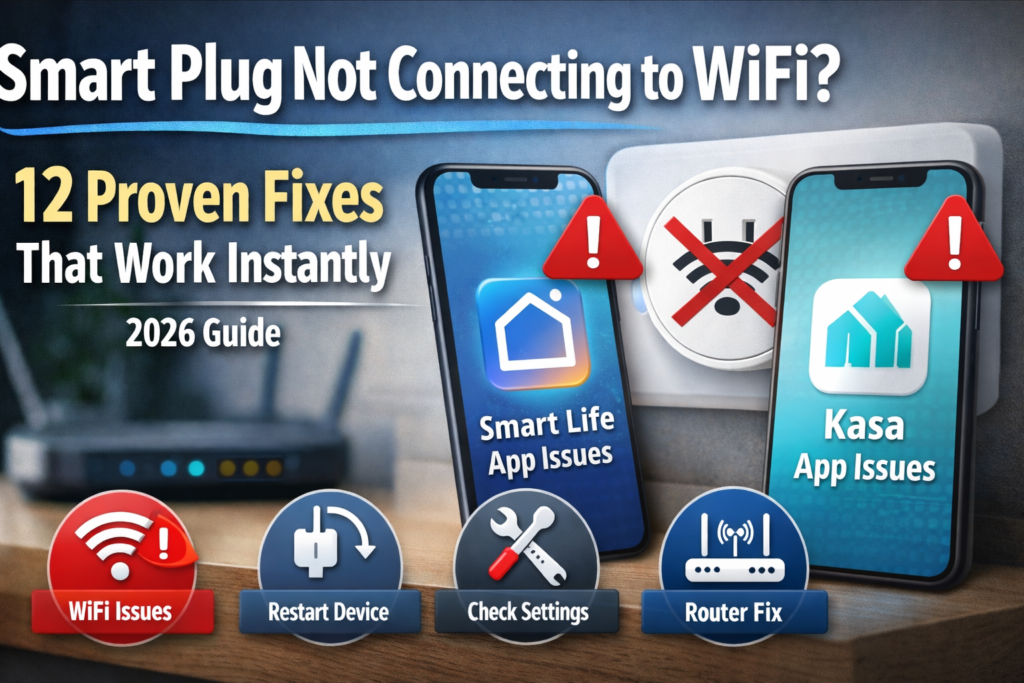
Faults of Smart Life App & Kasa App are commonly mistaken for faults of the smart plug hardware. Troubleshooting of a software component will definitely save you many hours of unnecessary tampering with hardware.
App unable to find a device is an indicator of a communication fault between your mobile device and your smart plug. Make sure that both your mobile phone and smart plug use the same WiFi network while you are setting up your smart plug. It often happens that you inadvertently connect your phone to the 5GHz network and try to pair the smart plug which operates on the 2.4GHz network.
Smart Life login troubles are mostly caused by password reset or other security settings changes. Try logging out and logging in using your current passwords.
Most times, when an app crashes while going through the setup process, there is usually an issue of incompatibility between the app and the mobile phone operating system. It could also be due to inadequate space in the phone memory.
When you encounter issues with setting up your smart plug, you should try connecting it using a different phone. Sometimes, the cause of these issues can be the application or operating system version or even device settings. You will be able to control the plug using the phone of your choice once it has been connected.
Clear the app’s cache from your phone settings if the above doesn’t help. It entails deleting temporary files in the phone without uninstalling the app entirely.
Make sure you are using the correct app like the Smart Life app to set up your smart plug.
Smart Plug Compatibility Guide
Compatibility of Alexa smart plug goes beyond Amazon products only. There are numerous third-party products that fit with Alexa perfectly well, but the setup process is quite different from one manufacturer to another.
Smart plugs by Amazon can be used perfectly fine with the Echo speakers and have minimum setting up process using the Alexa application. Third-party google smart plug compatibility products have more configuration steps for using voice control functions.
The google smart plug home compatibility usually needs Google Home application in addition to the main one in order to set up the product.
Look for “Matter” compliance on more modern smart plugs. The Matter-compliant devices support several smart home ecosystems at the same time, making life much easier for compatibility.
The thing is that I like smart plugs that support broad compatibility, not those which support only one ecosystem. Though Amazon smart plugs are perfect for Alexa, they can’t work efficiently with Google Assistant, thus, requiring you to make a choice between different ecosystems.
And cross-platform compatibility gets really important in case you have several voice assistants or think about changing your ecosystem.
Follow Amazon’s official guide to connect your smart plug with Alexa.
Best Smart Plugs That Work Without WiFi Issues
In regard to the smart plugs that provide the highest level of stability in terms of connectivity, there are some models which are known to outshine others. Smart plugs by Amazon come with great stability, though they are compatible only within the Alexa system.
Smart plugs from TP-Link Kasa are also noted for their great stability of connectivity and compatibility with a wide range of devices. They can be easily set up via Kasa app and have high levels of stability.
Wyze smart plugs combine good connectivity and low price, though they do not feature any advanced functions.
Plug-ins with an exterior antenna tend to have better performance compared to compact models with a built-in antenna. When installing the smart plugs outdoors or in places with weak signal, choose the smart plugs with the exterior antenna design.
Stay away from extremely cheap and unbranded smart plugs since such smart plugs usually have bad quality Wi-Fi chips leading to continuous connection problems. Paying a little extra for branded smart plugs can save a lot of trouble.
It is important to pay attention not only to features but also to reliability when choosing a smart plug. A reliable smart plug with good Wi-Fi connection is much more useful than feature-packed but unstable and constantly disconnected one.
You can also follow Google’s official WiFi troubleshooting guide to fix network issues.
Smart Plug Use Cases
The application of controlling space heaters smartly is among the most common uses of the smart plugs. One may be able to schedule heaters to turn on automatically before getting back home or turn them off remotely for safety and energy conservation reasons.
There are many types of appliances which can be controlled through the Wifi outlet. These include coffee makers, lamps, fans, aquariums, among others.
One may be able to control his/her smart plug remotely if there is access to the Internet connection. For example, I have used this feature to control my landscape lights when away on a holiday trip.
Controlling holiday lights is made easy with the use of smart plugs. You can schedule your Christmas lights to be switched on as the sun sets and off at midnight with no need for any manual efforts during the holiday period.
Voice control of lamp switches using smart plugs is of great assistance to senior relatives in your home. Using simple commands like “Alexa, switch on my bedroom lamp” saves you the effort of turning on switches in the dark room.
Smart plugs have useful applications in workshops and garages where you can remotely switch on/off your power tools and air compressors. It makes the use of power tools much safer.
Safety Tips When Using Smart Plugs
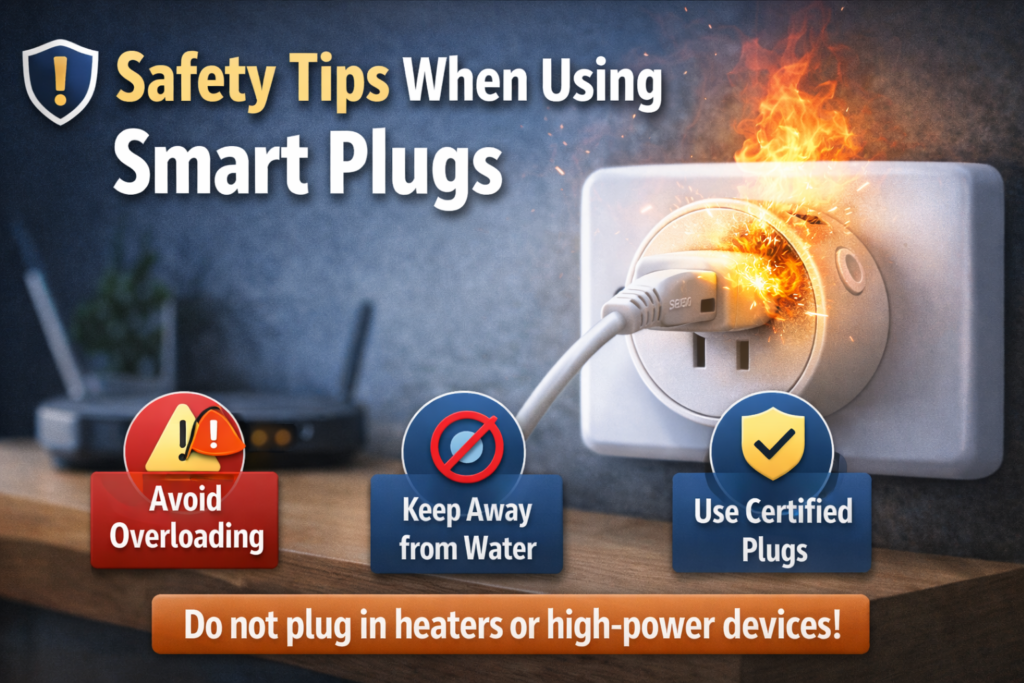
When selecting the safest type of space heater for the smart plug system, it is important to make sure the energy requirements of the heater do not surpass the output capability of the smart plug system. Most ordinary smart plugs have a capability of 15 amps, which can be surpassed by powerful heaters.
It is not advisable to link smart plugs together and use them with extension cords or power strips because they need to be connected directly into the wall sockets.
It is important to keep an eye on the temperature of the smart plug, especially when using powerful appliances.
Use only certified smart plugs that are UL-listed, ETL-listed, or similar for electrical safety. An uncertified smart plug may be lacking proper electrical safety and can create a dangerous situation in your house.
It was advised to keep space heaters above 1000 watts from smart plugs based on my own experience when the tested smart plug became too hot. Heavy equipment requires its own circuit rather than being controlled by a smart plug.
LED lights and electronic items work perfectly with smart plugs; however, I advise against using high-current devices such as microwaves, hairdryers, or power tools with smart plugs.
❓FAQs
Why is my smart plug not connecting to WiFi?
The main reasons include connection through 5GHz WiFi network, entering an incorrect password, and poor WiFi signal strength. You need to reset your smart plug and make sure that you connect it to the right WiFi network.
Does smart plug work with 5GHz WiFi?
Usually, smart plugs do not work with 5GHz WiFi. Although there are a few models which have dual-band compatibility, first, try to use 2.4 GHz network when setting up your smart plug.
How to reset a smart plug?
Hold the reset button for about 10-15 seconds while the plug is connected to electricity supply. The color of the LED light on the device will change indicating successful reset.
Which app is used for smart plugs?
Smart plugs require different apps depending on the brand. For example, Kasa app for TP-Link smart plugs, Smart Life for generic models and Alexa app for Amazon smart plugs.
Can I use smart plug with Alexa or Google Home?
It is very likely that your smart plug works with both assistants but you can find information about compatibility with Alexa or Google assistant on its packaging.
🔗Related Articles
- Best Smart Plugs 2026: Complete Buying Guide
- Alexa vs Google Assistant: Smart Home Comparison
- Smart Home Security: Protecting Your Connected Devices
- 7 Best Smart Plugs Under $25 (USA 2026) – Powerful Budget Picks
- TP-Link Kasa Smart Plug HS103 Review (2026) – Powerful Budget Smart Plug Worth Buying?
- Do Smart Plugs Save Electricity Bills in USA? (2026 Complete Guide)
🚀Conclusion
The vast majority of connection difficulties between smart plugs and WiFi networks occurs due to very simple things like mistakes in choosing the WiFi network, application settings or even installation procedure. The described above ways help to solve the vast majority of connection difficulties of smart plug users.
Begin troubleshooting from simple things like making sure of correct WiFi network frequency and resetting your smart plug. My personal experience suggests that the first three methods help to solve about 80% of all connection problems with smart plugs.
It is important to be patient when you are setting up a smart plug since you may make some mistakes if you try to do everything as fast as possible.
If you follow the described above recommendations, your smart plug will function normally again. Home automation systems are supposed to make your life easier, not more complicated.