
Does your Amazon Alexa device keep dropping off Wi-Fi connections? If you have trouble getting a solid Wi-Fi connection, you may experience difficulties when trying to communicate with Alexa using voice commands, control various devices and functions of smart home automation, and listen to music online. This problem applies not only to Amazon Echo Dots and Shows but also to all Alexa-powered devices.
There is one thing you should know about Wi-Fi problems with Alexa. In most cases, the problem occurs due to some regular reasons, such as poor Wi-Fi connection, outdated firmware, incorrect network settings, and others. And usually, they can be easily solved within minutes.
Below you will find 12 ways to fix Amazon Alexa device Wi-Fi disconnection problem. First, we will tell you about the easiest options and then proceed to the more difficult ones.
Table of Contents
Why Alexa Keeps Disconnecting (Root Causes)
Knowing the reasons why your Amazon Alexa device disconnects from Wi-Fi will be helpful before applying any of the solutions. There are several reasons why your connection might go bad, for example, a weak Wi-Fi signal, router problems, old firmware, interference on the network, software bugs, etc. The understanding of the problem makes it easier to fix it.
Weak WiFi signal The second reason that can cause the Alexa device to stop working is a poor Wi-Fi signal. To be able to listen to users’ commands, stream music, and control various home appliances, the speaker needs a stable connection. Otherwise, poor signal quality or long distance between a device and a router can lead to disconnects.
Router overload Routers can have trouble coping when there are too many devices trying to access the Internet simultaneously. Modern smart houses have lots of connected devices – phones, TVs, cameras, and other smart home devices. That’s why router overload might become a problem causing connection loss on your Alexa device.
Outdated firmware is a common cause of Wi-Fi connectivity issues. Keeping both your Amazon Alexa device and Wi-Fi router updated helps improve stability, security, and compatibility. If your Alexa device suddenly starts disconnecting after working normally, installing the latest firmware updates may resolve the problem.
Issues with the Amazon Alexa app lead to disconnection. Your application becomes faulty or out of sync with your device hence causing issues in communication and thus causing disconnection.
Device placement problems are not recognized but occur a lot. Your alexa speakers when placed next to metals, baby monitors, or any other electronic devices lead to disconnection.
12 Proven Fixes for Alexa Disconnecting
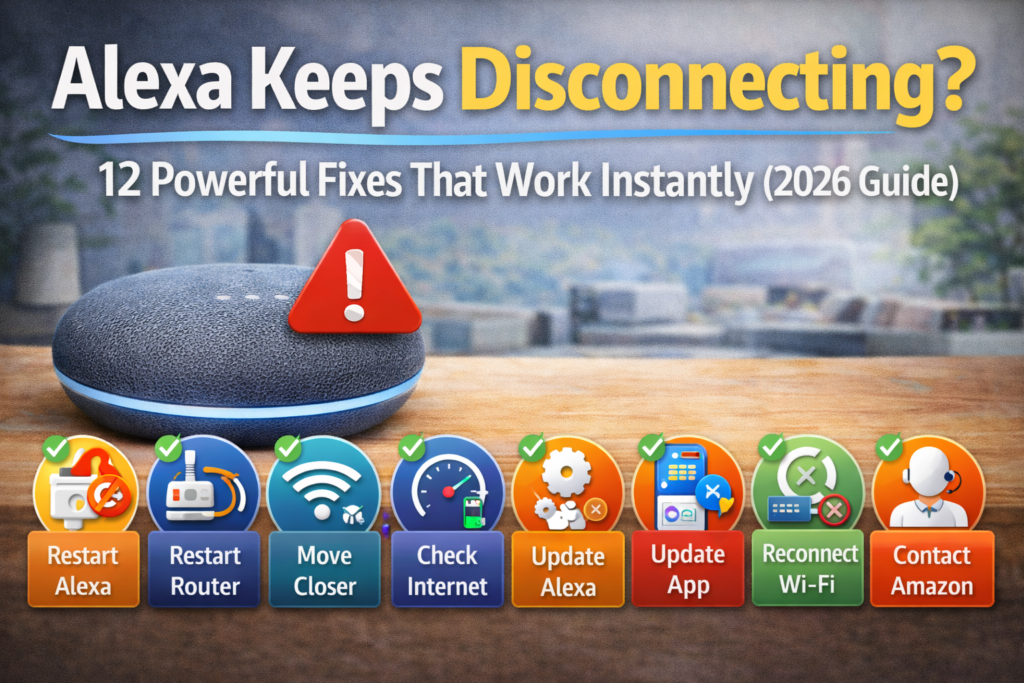
Fix 1: Restart Your Alexa Device
It may seem obvious, but restarting your Amazon Alexa device resolves roughly 30% of the connection problems. It will help you get rid of any temporary issues and reconnect to WiFi.
For Amazon Echo Dot:
- Disconnect the power adapter from the device
- Wait 30 seconds
- Connect the adapter again and wait until the device becomes blue and then orange
For Amazon Echo Show:
- Remove the power cord from the back of the device
- Wait 30 seconds
- Connect the power cord back and wait for the device to boot up completely
One of the fastest ways to troubleshoot your Amazon Alexa device is a simple restart of the device. It helps eliminate any temporary software bugs, refresh Wi-Fi connection and fix intermittent connection problems within several minutes.
Fix 2: Restart Your WiFi Router
This step may seem obvious, but power cycling your router is always the most efficient solution in case your Alexa gets disconnected from WiFi.
Here’s how to properly restart your router:
- Unplug the power cord of your router
- Count up to 60 seconds (wait for this time – it’s essential)
- Plug the power cord into the socket
- Wait for 3-5 minutes while your router will be rebooting
- Check if your Alexa device reconnects automatically
It’s an absolutely proven method which worked for me a lot of times. Routers need to be rebooted from time to time to clear their memory and update connections to other devices.
Fix 3: Move Alexa Closer to Router
The strength of the WiFi signal plays an essential role in determining connection stability. Often, I’ve seen that individuals tend to locate their alexa speakers in aesthetically pleasing places, but these places might have weak WiFi signals.
Ideal placement tips:
- Try keeping your device less than 30 feet from your router, if possible
- Do not locate your device behind thick walls and metal objects
- Do not position it near baby monitors, microwaves, and other gadgets which operate at 2.4GHz frequency range
- Position it on shelves and tables, not on floors
Place your Amazon Alexa device in such an open area which has a strong Wi-Fi signal. Do not place your device behind any appliance or cabinet since it would create interference in your wireless connection.
Fix 4: Check Internet Speed & Stability
The alexa device requires a stable internet connection. The minimum required internet speed for the functioning of the device is 0.5 Mbps, but 2-5 Mbps will work perfectly.
Use these steps to test your connection:
- Perform speed test using an electronic device close to your Alexa device
- Ensure there is no speed fluctuation while doing the speed test
- Contact your internet service provider if you are getting low speed constantly
- Consider changing the internet package if you have multiple smart devices
Inconsistency in speed affects more than the slow internet. In case of speed fluctuations, the alexa device will not be able to stay connected.
Fix 5: Update Alexa Device Software
One of the reasons why your alexa device may be experiencing connectivity problems is outdated software. Amazon alexa devices update themselves automatically most of the time, but some times, updates may be stopped midway.
To check for updates:
- Go to the Amazon Alexa app on your smartphone.
- Click on “devices” located at the bottom.
- Choose your device
- Find out if there are updates needed
- If there are updates needed, plug in the device and make sure that it is connected to Wi-Fi before updating the device.
Automatic updates typically take place during the night hours. If you have experienced connection problems with your Alexa device, make sure that there is no update required to fix the situation.
Fix 6: Update or Reinstall the Alexa App
The problems related to the amazon alexa app could also lead to the disconnected device situation where your device seems disconnected while the device is actually working properly. I have encountered many such instances wherein the app got out of sync with the device.
To update the app:
- Open the app store on your phone.
- Look for “Amazon Alexa”
- In case there is an update, install it
To reinstall the app:
- Remove the alexa app from your phone.
- Open the app store and look for “alexa app download”.
- Install the updated version of the app.
- Login to your account again and sync your devices.
Re-installing the app helps in fixing the bugs and synchronization problems which cannot be fixed through updates only.
You can download or update the Amazon Alexa app from the official page to fix connectivity issues.
Fix 7: Forget & Reconnect WiFi Network
At times, your Alexa device can get tied up trying to connect to your WiFi using some incorrect information about the network. Getting the device to forget and recreate the connection will usually solve any such problems.
Step-by-step reconnection guide:
- Open the Alexa app and go to “Devices”
- Select your device
- Go to WiFi settings
- Choose “Forget Network” or “Change WiFi”
- Recreate the WiFi network setup all over again
- Enter your network password carefully
The above process allows the device to establish a new connection with your router.
Fix 8: Disable VPN or Firewall
A virtual private network and an overly secured firewall may interfere with the network connection between the speaker and the Amazon servers. If you use either of them, chances are high that they are causing the connection failure on your device.
Try these steps:
- Turn off any working virtual private networks installed on your router
- Review the firewall settings for blocked connections
- Set exceptions for the Amazon Alexa services whenever possible
- Use your device while turning off these security functions
Your router may come with advanced firewall or security settings that may affect your ability to connect your Alexa to Wi-Fi. Review your router firewall and security settings and ensure that you are not blocking connections from the Amazon server.
Fix 9: Reduce Network Congestion
There can be too many devices connected to your WiFi which would result in the alexa device not connecting. Routers can accommodate many connections, however, this is a problem in old routers which are overloaded.
Smart home optimization tips:
- Count Number of devices connected to the WiFi
- Unplug devices that are not currently in use
- Use Ethernet cables for those stationary devices like gaming consoles and PCs
- Upgrade to a dual band router if using an old single band router
Network congestion usually happens at night since everyone is playing movies and using several devices. This would be the reason if your Alexa disconnects specifically during those hours.
Fix 10: Reset Your Alexa Device
If everything fails, then a factory reset will always help in solving the problem of a connection error since it involves removing everything stored on the device and setting it up again. But it will help you solve any problem that is bothering you.
Factory reset steps:
- Identify where the reset button is on the device (this is usually a button which you need to press)
- Press the reset button for 25 seconds when the device is plugged in
- Wait until the light ring goes off and back on
- Reconfigure your device by using the Alexa app
A factory reset should be your final solution if all of the solutions above failed. It resets your Amazon Alexa device back to the default settings. Thus, any corrupted configurations and software issues are removed by this procedure.
Fix 11: Check Alexa Server Status
Occasionally, the problem doesn’t arise from your device or your network, but rather from the servers of Amazon. It’s quite unusual but sometimes can occur.
To check server status:
- Search the internet for “Amazon Alexa server status”
- Visit the service status page on Amazon’s website
- Check on social media for any news about problems with the services
- Wait until Amazon solves the problem if there’s an outage of their servers
It occurs very rarely that the servers have downtime, which lasts several hours and affects a lot of people at once. If your device has started malfunctioning unexpectedly and nothing helped, this could be the reason.
Fix 12: Contact Amazon Alexa Support
Professional assistance becomes necessary when there are issues with device hardware. Amazon Customer Service can perform a remote diagnosis and find out whether the device requires replacement.
When to contact support:
- You have tried all other fixes but the problem persists
- The device is still under warranty
- The device looks like it has some physical damage or behaves unusually
- Other Alexa devices in your home exhibit similar symptoms
The professionals from Amazon have access to diagnostic tools that are not available for the consumer.
Fix Alexa App & Account Issues
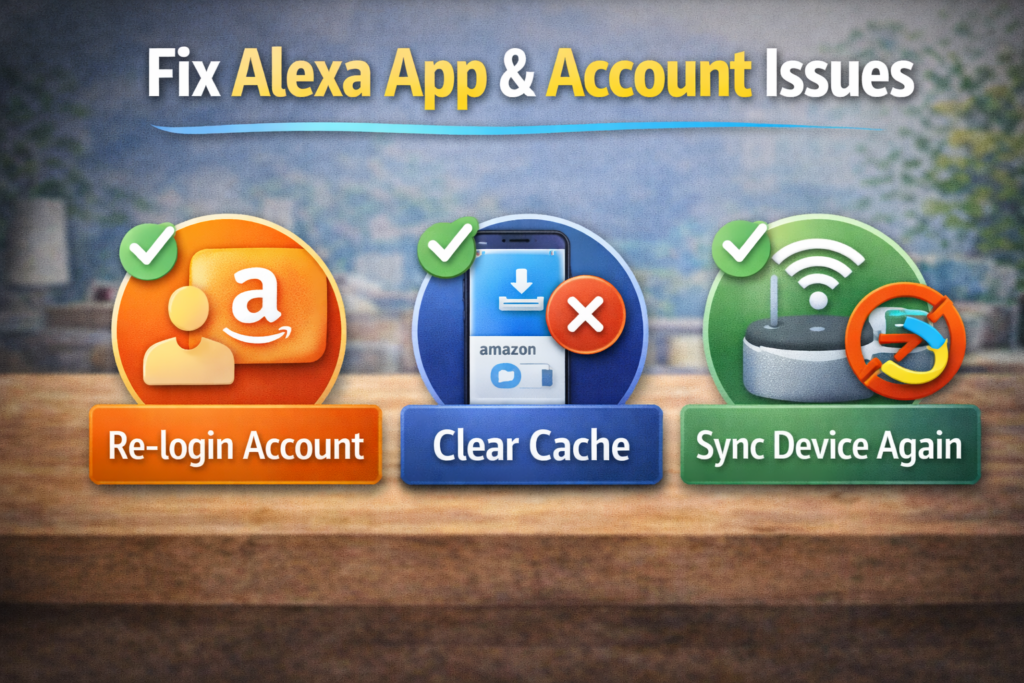
Your alexa account and the amazon alexa app could also be causing problems if you have an issue with your alexa being disconnected even though it is working just fine. These types of problems are usually ignored yet very common.
Account-related fixes:
- Log out of your alexa account and log in again
- Ensure that your amazon account doesn’t have any holds or payment problems
- Check that your account is well linked to all your devices
App-specific solutions:
- Clear the cache of your app (android users) or install it again (iphone users)
- Ensure that you have the latest version of the alexa app on pc if you use it from the computer
- If you don’t know your alexa app version, you can download it from the app store.
Sometimes recent changes you make on your Amazon account like password and payment info may result in synchronization problems with Alexa. Ensure that after making these changes, you sync and connect your account properly through the Alexa app.
Device-Specific Issues (Echo Dot / Echo Show)
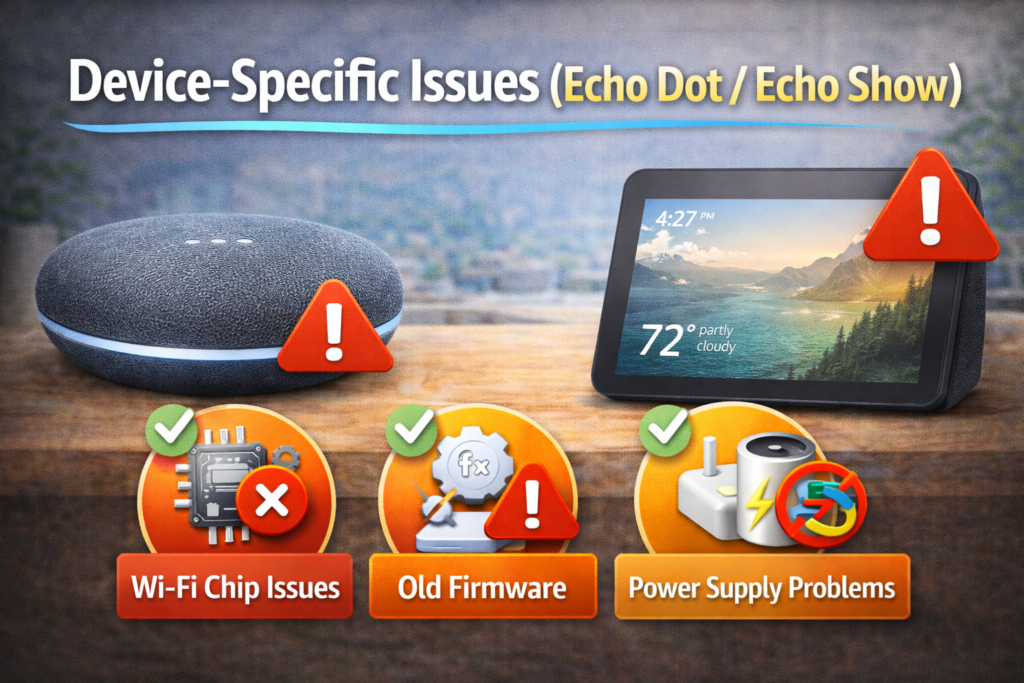
Some connection problems can be experienced in certain device models only. There are some specific problems that are associated with older Amazon Echo Dot devices and with the first generation Echo Show devices.
Common Amazon Echo Dot problems:
- Older devices (1st and 2nd generation) have poor WiFi chips that can experience problems due to modern router settings
- Power problems can lead to connection drops – use the original charger
- Buildup of dust near the device can result in overheating and connection drops
Amazon Echo Show specific issues:
- The screen consumes more power and can strain older USB power chargers
- Watching videos during the call or media playback can overload the WiFi connection
- The settings of the screen brightness can influence power settings and cause disconnections
If you experience repeated connection drops on your old device, then probably it is about to expire.
How to Prevent Alexa Disconnecting Again
Proactive action is always superior to reactive actions. These are the best practices I have learned to ensure that Alexa devices maintain a consistent connection.
Router optimization:
- A dual band router that can handle both 2.4 GHz and 5 GHz frequencies should be used
- Place your router at an advantageous position, not near other electronics
- Ensure that you update the firmware of your router (once in three to six months)
Device maintenance:
- Your alexa speaker should be updated with the latest version of software
- Regularly clean the area around the device to avoid dust accumulation
- Check for WiFi signals strength and reposition the device
Network management:
- Do not overload your WiFi network with too many devices
- Enable QoS settings on your router, if available, to give priority to smart home devices
- Ensure that you check your internet speed frequently, and in case of slow speed, contact your service provider
These preventative steps have ensured that my smart home devices work perfectly for more than two years now.
When to Upgrade Your Alexa Device
One of the solutions may be replacing your existing device for a newer model that will offer better connectivity capabilities. Alexa devices currently have much more advanced WiFi chips and improved power management features.
Consider upgrading to:
- Amazon Echo Dot (5th Gen) – Improved WiFi connectivity, enhanced speaker capabilities, improved power management
- Amazon Echo Show 8 – Improved WiFi capabilities, faster CPU, improved multitasking capability
Signs you need an upgrade:
- Device is older than 4 years
- Fixes didn’t help and connectivity issues continue
- Device often freezes when connected
- Response time is noticeably slower on this device than on the new devices
In addition, newer devices offer the latest WiFi standards and protocols for improved security.
For advanced troubleshooting, visit the official Amazon Alexa Support page.
❓FAQ Section
Why does Alexa keep disconnecting from WiFi?
Weak WiFi connection, router overload, old software version, or network traffic. First try to reboot your Alexa device and router and see how far away is your device from the router.
How do I reset my Alexa device?
Press the reset button on your Alexa device for 25 seconds while it’s powered on. Then, wait until the light ring turns off and back on. You’ll have to set up your device anew via the Alexa application.
Does Alexa need strong internet?
Stable Internet is what Alexa requires rather than high-speed Internet. According to Amazon, the minimum speed is 0.5 Mbps, but 2-5 Mbps is better.
Why does my Echo Dot keep going offline?
The reasons for Echo Dot devices going offline may include poor WiFi connection, problems with power supply, or outdated software. Move it near the WiFi router and use the original power cord.
How to fix Alexa app not working?
Upgrade the application to the newest version or delete and reinstall it from scratch. In case of Android devices, clear the app cache. Make sure you’re using the right Amazon account.
Can network congestion cause Alexa to disconnect?
Yes, having too many connected devices can cause disconnections. It usually happens at peak times, for example, when multiple members of the family are using WiFi simultaneously.
How often should I restart my router to prevent Alexa issues?
It is recommended to reset your router once per month or when your smart home devices work poorly. You can configure the router to reboot automatically at nighttime (for instance, at 3 AM).
🔗Related Articles
- Alexa not responding
- Smart plug not connecting
- Google Home setup
- Best smart speakers
- Amazon Echo Dot (5th Gen) Review (2026) – Is It Worth It?
- Best Smart Speakers for Small Apartments (2026 USA Guide)
- Best Bluetooth Speakers 2026: Shocking Smart Home Picks Under Budget
- Alexa Home Automation (2026 Guide): How to Build a Smarter Home
🏁Conclusion
There is no need to complicate the process and spend money to fix Alexa disconnections. In many cases, it is enough to restart the device, place it closer to the router or update the software.
First of all, it is necessary to try the most basic solutions, such as restarting both the Alexa device and the router, checking the WiFi signal and ensuring that everything is up-to-date. Such an approach solves more than 80% of the problems I experience.
If it does not help, proceed to other methods, for example, resetting the device and diagnosing network congestion. It is necessary to remember that older devices sometimes require an upgrade to function effectively in a modern network environment.
The main point is to perform troubleshooting in a systematic way. Try to use the described approaches step by step and do not change the sequence at random.
Of course, there may be cases when several solutions will not help. However, the connection issues are usually solved after trying different approaches.
Pingback: Amazon Alexa Not Responding? 12 Proven Fixes That Work Instantly (2026 Guide for Echo Dot & Echo Show)