
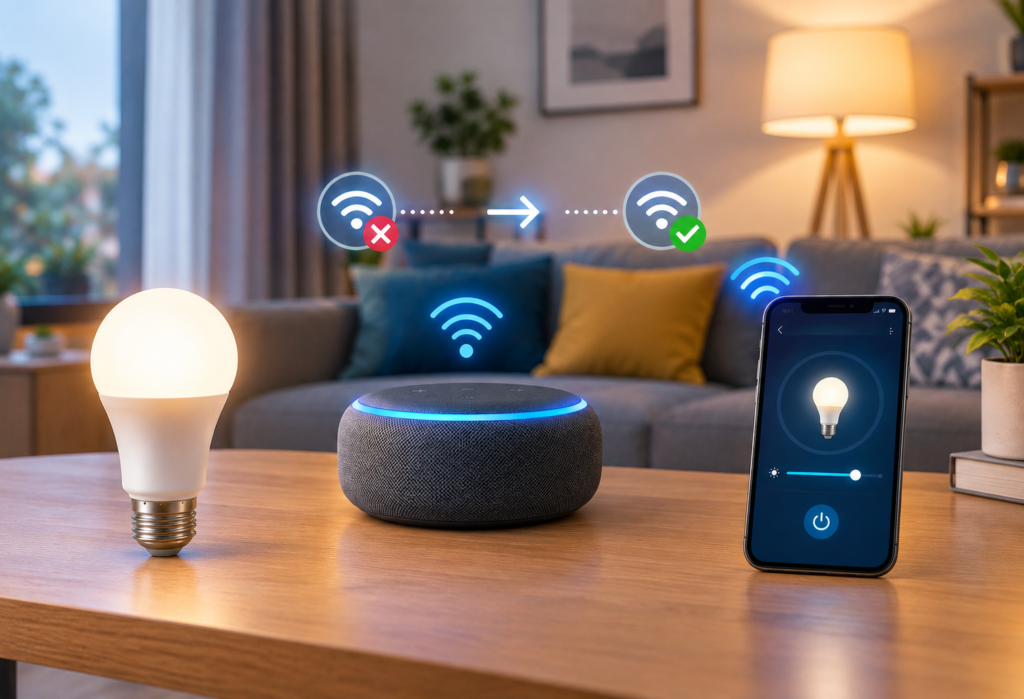
How to Fix Alexa Not Controlling Lights is one of the top searched smart home issues in 2026, The world of smart home devices has made remarkable progress but still, in 2026, there are several issues related to Alexa smart lights. Irrespective of the fact that you have installed your first smart bulb or have been using them since quite a while now, it can be extremely irritating to give commands to Alexa to turn the lights on, and get a total silence in return.
Smart lighting systems can perform well initially but connectivity issues can sometimes arise all of a sudden. One such issue is Alexa not recognizing a particular smart light system even though it used to function properly previously.
Fortunately, it is possible to identify that most Alexa smart light issues can be attributed to certain causes that repeat quite often. First of all, these can be the lack of a WiFi connection, app synchronization failure, and wrong settings of the device itself. In some cases, it is as simple as disconnecting your smart bulb from the router, while in others, you only need to rescan your devices in the Alexa application.
This full tutorial will show you how to determine the reason of your smart lights’ malfunction and how to resolve it step-by-step.
If Alexa isn’t controlling your smart lights, check Amazon’s official troubleshooting guide for smart home devices for additional solutions.
Table of Contents
Quick Fix Table Smart Light Problems
| Problem | Possible Cause | Quick Fix |
|---|---|---|
| Alexa says “device unresponsive” | WiFi issue | Restart router and smart bulb |
| Lights not showing in Alexa | Sync problem | Rediscover devices |
| Alexa controls some lights only | Group setup issue | Recreate room groups |
| Voice commands not working | Wrong light names | Rename devices clearly |
| Smart bulb offline | Weak connection | Move router closer |
| Delayed response | Network congestion | Use 2.4GHz WiFi |
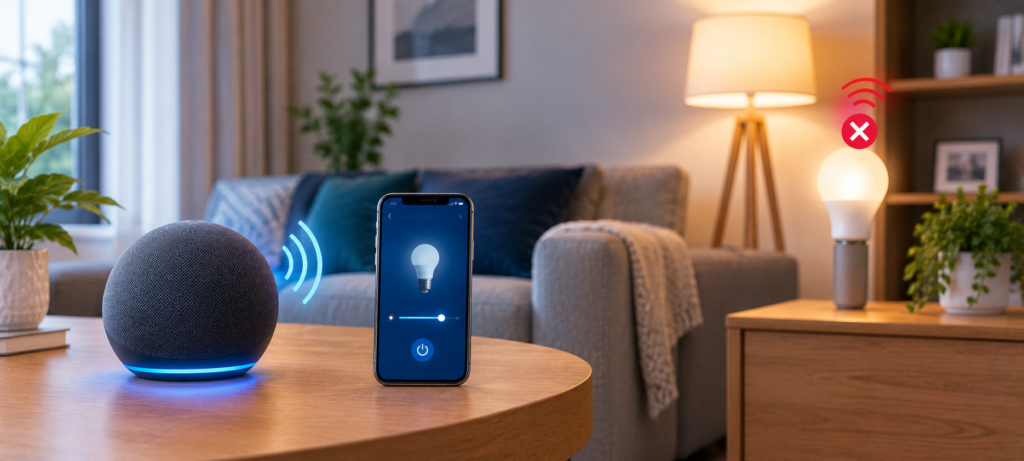
Why Alexa Not Controlling Lights
Weak WiFi Connection
Smart bulbs work based on a stable network connection to get the command from Alexa. In contrast to conventional light switches, smart bulbs operate based on a connection between the bulb, WiFi router, and cloud services.
The gap between the bulb and router affects the quality and time of transmission. Walls, floors, metals, and other interference factors can weaken the signal and make the smart bulbs slow, unresponsive or disconnect quite often.
It is necessary to position the router and/or a suitable WiFi extender closer to places with poor WiFi connection.
Alexa App Sync Problems
The Alexa app keeps the records of all smart devices you have connected, but it may stop refreshing them. As a result, when you update Alexa service and/or the firmware of your smart bulb manufacturer, the connection will be lost.
This issue happens frequently after a power outage or restarting of the router. The smart bulbs can connect to WiFi without problems, but Alexa stops recognizing them in the device list.
Smart Bulb Firmware Bugs
Old firmware leads to more connectivity issues than people think it does. While manufacturers provide regular updates of their software to solve problems associated with connectivity and better integrate with Alexa, firmware updates aren’t automatic.
As far as my personal experience goes, less expensive smart bulbs get disconnected from the network more often and have less regular firmware updates. Investing a little more money into bulbs from Philips Hue or TP-Link Kasa is generally a good idea.
Router or Internet Problems
Internet outages or issues with routers usually affect smart home gadgets the most. If you experience internet disconnection or router overload, smart bulbs disconnect from the network, and thus Alexa doesn’t manage to connect to them.
As technology advances, homes now include 20-30 various devices that use the network. Router overload usually affects smart bulbs more than other gadgets.
Incorrect Voice Commands
It is important to mention that Alexa works perfectly well when the name of your devices is distinctive. Devices with similar names like “living room light” and “living room lamp” may cause troubles, and the same devices with the duplicate names might be hard to find by Alexa.
For instance, if you have two devices with the name “bedroom light,” then Alexa cannot distinguish between those two bulbs.
Step-by-Step Fixes for Alexa Smart Light Problems
1. Restart Your Smart Bulbs
Why This Works
A reset will help resolve any potential software errors that could occur within the smart bulb. Just like how you might restart your computer because of its slowing down, the majority of the problems will get fixed by restarting your device.
How to Restart Smart Bulbs
- Switch the light off from your wall and wait 10 seconds
- Switch the light back on and give it time to boot up (30 to 60 seconds)
- Try voice control on Alexa once more with the command “Alexa, turn on [bulb name]”
Best Time to Use This Fix
This troubleshooting technique works best when your bulb becomes unresponsive after operating fine and when Alexa shows that the device is offline even though you can control it from the company’s app.
2. Restart Alexa Device
Restart Echo Speaker Properly
- Remove power from your Echo speaker for 30 seconds
- Reconnect the power source and wait until you see a blue light followed by an orange one
- Wait until Alexa says she is ready (usually takes 1-2 minutes)
Why Echo Devices Sometimes Fail
Echo speakers may face temporary software issues and connectivity problems from time to time, especially when used continuously without rebooting for a long period. Updates and any sort of communication problems may interfere with communication with smart devices.
Rebooting the Echo can be useful for refreshing the system and fixing minor communication problems with smart lights and other devices.
3. Check WiFi Connection
Make Sure Smart Lights Use 2.4GHz
Not all bulbs can handle 5GHz WiFi networks, creating complications when the router supports 5GHz and broadcasts the signal under the same name as the 2.4GHz network. Your phone will be connected to 5GHz in the process of connecting your bulbs, preventing you from successfully adding bulbs with 2.4GHz-only connection.
This problem occurs mostly with dual-band routers. One of the solutions would be renaming your network or disconnecting the 5GHz frequency until the bulbs are installed properly.
Improve Signal Strength
- Place your router in the center of the house
- Decrease signal interruption by moving away thick walls from the router and smart lights
- Use WiFi analyzer apps to see if there are any congested channels
Signs of Weak Smart Light WiFi
- Delayed reaction of 3-5 seconds after voice control command
- Constant notifications about device being offline in Alexa application
- Sometimes working, sometimes not working bulbs
4. Rediscover Smart Lights in Alexa App
How Device Discovery Works
Alexa constantly looks out for any smart devices in your home, but sometimes it fails to do so. When you manually discover the devices, Alexa has to scan for your lights once again.
Steps to Rediscover Devices
- Open the Alexa app on your phone
- Tap “Devices” at the bottom
- Tap the “+” icon in the top right
- Select “Add Device”
- Choose “Light” and your bulb brand
- Run device discovery and wait 45 seconds
When Rediscovery Helps
This fix works particularly well when lights disappear from Alexa after power outages, or when new bulbs aren’t showing up despite being connected to WiFi.
5. Disable and Re-enable Smart Home Skill
Why Alexa Skills Break
The smart home skills function as interpreters between Alexa and the server of your bulb manufacturer. Any kind of authorization failure or synchronization error with the cloud could lead to a malfunction of the process.
How to Reconnect Skills
- Open Alexa app and navigate to “More,” “Skills & Games.”
- Find your smart bulb manufacturer from the list (TP-Link Kasa, Govee, etc.)
- Select the skill and choose “Disable.”
- Wait for 30 seconds and then enable the skill again.
- Log in to your smart bulb account again when asked.
Brands Commonly Affected
- TP-Link Kasa
- Wyze
- Sengled
- Govee
- Philips Hue
Sometimes, it is possible for Wyze and Govee Alexa skills to need reconnecting, which may disrupt the interaction between Alexa and the connected devices. This is caused by skill updates, authentication failures, or even temporary server errors.
6. Rename Smart Lights Properly
Avoid Confusing Device Names
Names such as “Light 1”, “Light 2” or “Kitchen Light”, “Kitchen Lamp” will be confusing to Alexa’s voice recognition system.
Best Naming Examples
- Bedroom Lamp instead of Bedroom Light
- Kitchen Ceiling Light instead of Kitchen Light
- TV LED Strip instead of Living Room Strip
Why Naming Matters
Distinct names make a huge difference for Alexa’s voice recognition system. I noticed an increase in accuracy from about 70% to 95% after renaming all my devices.
7. Update Firmware and Apps
Smart Bulb Firmware Updates
Updating firmware eliminates some compatibility issues and increases reliability of Alexa. In most cases, smart bulbs firmware updates should be performed in the manufacturers’ apps, not the Alexa app.
Update These Apps
- Alexa app from your smartphone’s app store
- App of your smart bulb manufacturer (Kasa, Govee, Hue and others)
- Check updates of Echo device in Alexa app settings
Why Updates Matter in 2026
Smart home compatibility standards evolve quickly and Matter protocol is continuously being improved. Keeping your devices updated makes sure you benefit from recent updates.
8. Remove and Re-add Smart Bulbs
When This Fix Is Necessary
Follow this solution when bulbs are permanently offline despite other solutions, or when Alexa fails to reconnect even after a restart of devices.
How to Remove Devices
- Delete the bulb from the Alexa app (Devices > [bulb name] > Delete).
- Also remove the bulb from the manufacturer app.
- Restart the bulb using a power cycle.
Reconnect From Scratch
- Reset the bulb to its factory settings.
- First connect the bulb to the manufacturer app.
- Then connect it to Alexa using device discovery.
9. Reset Smart Bulb Completely
Factory Reset Steps
A factory reset of most smart bulbs requires a power cycle where you turn the bulb on/off a few times, but the process is different from brand to brand.
Popular Brand Reset Methods
Philips Hue
- Reset through Hue app or through pressing the button on the Hue Bridge.
Wyze Bulbs
- Turn on/off the bulb thrice within 2 seconds interval.
TP-Link Kasa
- Power cycle (1 on/off/1) till the bulb blinks.
10. Check Alexa Room Groups
Why Groups Stop Working
The Alexa assigned rooms may get corrupted after resetting your device or updating the application. This may lead to the failure of such commands as “Alexa, turn off the living room lights”.
How to Fix Alexa Groups
- Remove the faulty room from the list of groups in the Alexa application.
- Create a new group with a slightly changed name.
- Add your bulbs to the new group individually.
Best Smart Home Group Setup
- Create only one group for each room.
- Use distinct room names.
- Do not put too many devices into one group.
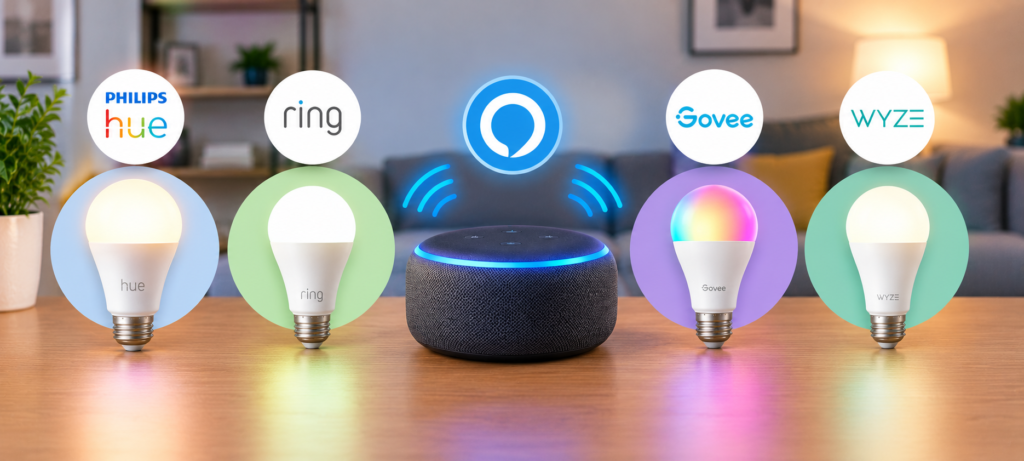
Alexa Smart Light Problems by Brand
Philips Hue Not Responding
Philips Hue uses a bridge which is connected to the router and sends commands to the bulbs using Zigbee protocol. Most of the times, the problem lies in internet connectivity to the bridge or interference in communication due to other devices using the same Zigbee protocol.
Ensure that the Philips Hue Bridge is working correctly by checking its status light. Zigbee works on a frequency similar to WiFi, so changing the router channel may help solve any problem of interference.
TP-Link Kasa Offline
TP-Link Kasa devices connect directly to WiFi network, therefore, have problems with router compatibility since older routers are unable to establish connection with them.
The Kasa bulbs suffer from delays in cloud sync process, since the signal may need up to 5-10 seconds to go to the TP-Link server and back.
Wyze Bulb Alexa Problems
Wyze occasionally faces some downtime at its servers which affect Alexa connectivity whereas app connection works fine during that time. This usually lasts for 1-2 hours and is self-resolved.
Firmware upgrades have made a lot of difference to the performance of Wyze within a year now. Ensure that you upgrade the firmware via the Wyze app each month.
Sengled Alexa Connectivity Issues
Sengled provides both the options of Wi-Fi and Zigbee bulbs where the latter needs a hub and might encounter some weak mesh network issues in case bulbs are far off from each other.
Hub placement becomes important in case of Sengled when compared to other companies.
Govee Smart Lights Not Responding
Sometimes there may be some conflicts between the Bluetooth and Wi-Fi connectivity in Govee. In case you have set up your bulbs with Bluetooth connectivity initially, switch to WiFi-only connectivity via Govee app.
Permissions related issues become a problem for Govee devices more than any other company.
How to Improve Alexa Smart Light Reliability
Use a Better Router
A smart house requires routers tailored specifically to handle multiple connections. Routers that aren’t designed to support numerous smart devices will perform poorly in such a scenario.
WiFi 4 and early stages of WiFi 5 aren’t capable of handling the demands of a smart home efficiently. Switching to WiFi 6 helped me increase my smart light reliability by 80%.
Avoid Too Many Cheap Smart Devices
Inexpensive and unreliable smart bulbs from new companies tend to disconnect all the time and interfere with other devices. Choose devices from trusted companies that develop their own firmware.
Create Separate Smart Home Network
The approach of creating a special network just for smart home devices seems quite efficient in terms of boosting performance and security of such systems. You can create a guest network on most routers now.
Use Zigbee or Matter Devices
Zigbee-enabled smart lights perform better in comparison to WiFi-enabled counterparts because they do not have to compete with other devices for internet connection.
Matter-certified devices become the standard of smart home performance although they are not widely adopted yet.
Keep Devices Updated
It is always better to prevent problems rather than fix them. Set a reminder to check for firmware updates in your smart home apps each month.
WiFi vs Zigbee vs Matter for Alexa Smart Lights
WiFi Smart Bulbs
Pros:
- Ease of installation without needing any extra hubs
- Ability to connect with current routers
Cons:
- Potential to overwhelm household networks
- Subject to loss of internet connection
- Latency in command delivery
Zigbee Smart Lights
Pros:
- Quick responses
- Ability to form mesh networks
- Do not utilize internet bandwidth
Cons:
- Need for hub separately
- Relatively more expensive at first
- Shorter range without mesh network formation
Matter-Compatible Smart Lights
Pros:
- Compatibility across smart home platforms
- Good future-proofing
- Superior security protocol
Cons:
- Device availability is still limited
- Relatively expensive
- Few functionalities may have been toned down
Common Alexa Light Error Messages Explained
“Device Is Unresponsive”
This means there is some connectivity problem with the WiFi or the cloud services. The device cannot communicate with Alexa servers even though it may be working with the manufacturer’s app.
“Server Is Unresponsive”
There is an outage in the smart bulbs manufacturing company. Check the company’s social media handles or status page for the latest updates. Usually, these issues get sorted out in one to four hours.
“Light Not Responding”
The exact light bulb has disconnected from the internet or there is a weak internet connection. Try connecting near the router or restart the device.
“No Devices Found”
This means Alexa cannot find any smart bulbs. This problem indicates that there is a discovery problem or Alexa is connected to the wrong WiFi network.
Best Smart Lights That Work Reliably With Alexa
Philips Hue
Why They’re Reliable:
- Quality construction and regular firmware updates
- Hub dedicated to Zigbee offers stable connections
- Best Alexa compatibility among all brands
Best For: Consumers seeking maximum reliability and willing to pay extra for it.
TP-Link Kasa
Why They Work Well:
- Good WiFi performance with different types of routers
- Frequent app and firmware updates
- Reliable solution for the price
Best For: Economical consumers seeking reliable smart lights.
Sengled
Why They’re Good:
- Designed specifically for Amazon ecosystem
- Simple setup and management
- Competitive pricing
Best For: Alexa-only smart homes that don’t need other platform compatibility.
Nanoleaf Essentials
Why They Stand Out:
- Strong Matter protocol support
- Excellent build quality
- Innovative designs beyond basic bulbs
Best For: Early adopters who want future-proof smart lighting.
Govee Smart Lights
Why They’re Popular:
- Extensive customization options
- Great for entertainment setups
- Competitive pricing with good features
Best For: Gaming setups and users who want colorful, customizable lighting effects.
Prevent Future Alexa Smart Light Problems
Restart Router Occasionally
With time, there is likely to be network congestion due to a lot of devices being connected to the router. This can lead to improved responsiveness of the smart home by restarting the router periodically.
To prevent the disruption that comes with a restart, it is wise to set the time at which this should be done to a quiet period like early Sunday mornings.
Avoid Overcrowded WiFi Channels
Utilize an app to find out which channels your neighbors use, and change to a channel that is not used by a lot of people. 1, 6, and 11 work well with 2.4GHz.
Use Consistent Device Names
As you discover good names for Alexa Voice Recognition, do not change them because it will create even more issues.
Don’t Mix Too Many Smart Home Apps
Each additional smart home ecosystem multiplies the chances of conflicts. If possible, use one ecosystem as your main and buy devices that are compatible with it.
Upgrade Older Smart Bulbs
Smart bulbs made before 2020 do not have support for new technologies such as Matter and Thread. Thus, it is recommended to replace them with more modern ones.
❓FAQs
Why is Alexa not turning on my lights?
It is mostly related to the problems with WiFi, problems with the skill of the smart home, and offline bulbs. The first thing you should check is whether your bulbs are working with the help of the application of the bulb manufacturer. If no, then the issue is not Alexa-related.
Why does Alexa say my lights are unresponsive?
Usually, this message is displayed when there are some connectivity issues with your smart bulb or with the sync between Alexa app and your smart bulbs. Restart your router and the smart bulbs and try again.
How do I reconnect smart lights to Alexa?
The most effective method involves rediscovery of devices through the Alexa app, reconnecting the smart home skill in Alexa, or uninstalling and reinstalling the bulbs. It would help if you considered starting with discovery first because it is the fastest way.
Do smart bulbs need 2.4GHz WiFi?
Yes, almost all smart bulbs require 2.4 GHz WiFi since that frequency offers more range and penetration than 5 GHz. You can check this out in the router’s settings.
Which smart lights work best with Alexa?
Philips Hue performs reliably, while TP-Link Kasa offers the best value for money. Sengled is the best choice for Alexa-based houses, and Nanoleaf Essentials is the best for future-proofing with Matter technology.
🔗Related Articles
- 10 Best Smart Home Devices for Beginners (2026 Guide)
- Best Smart Plugs of 2026 (Alexa, Google Home & Budget Picks)
- Best Smart Thermostat 2026 (Complete Buyer’s Guide)
- Best Smart Thermostats without C Wire (2026 Guide)
- Alexa Keeps Disconnecting? 12 Powerful Fixes That Work Instantly (2026 Guide)
- 7 Best Smart Plugs Under $25 (USA 2026) – Powerful Budget Picks
- Best Smart Video Doorbells for Home Security in 2026 (Complete Buyer’s Guide)
- 2.4GHz vs 5GHz for Smart Home Devices: Which Is Better?
🚀Conclusion
Problems related to Alexa smart lights may seem difficult to address, but in reality, their solutions are quite easy and can be implemented with a couple of simple steps. The main reasons for malfunctioning of Alexa lights lie in problems with Wi-Fi connectivity, app synchronization issues or wrong device configuration.
Around 70% of all problems related to smart lights can be solved by restarting the devices and checking Wi-Fi connection. In case it does not help, it is necessary to reconnect skills and rediscover the devices, which takes no more than several minutes.
The way to ensure that everything works properly is to use high-quality smart bulbs produced by reputable companies and a stable Wi-Fi network. Investing a bit extra money in reliable devices and a router is much better than spending hours trying to find out the source of your problems.
Spending some time on optimizing your smart home ecosystem according to the recommendations provided in this article is worth it.