
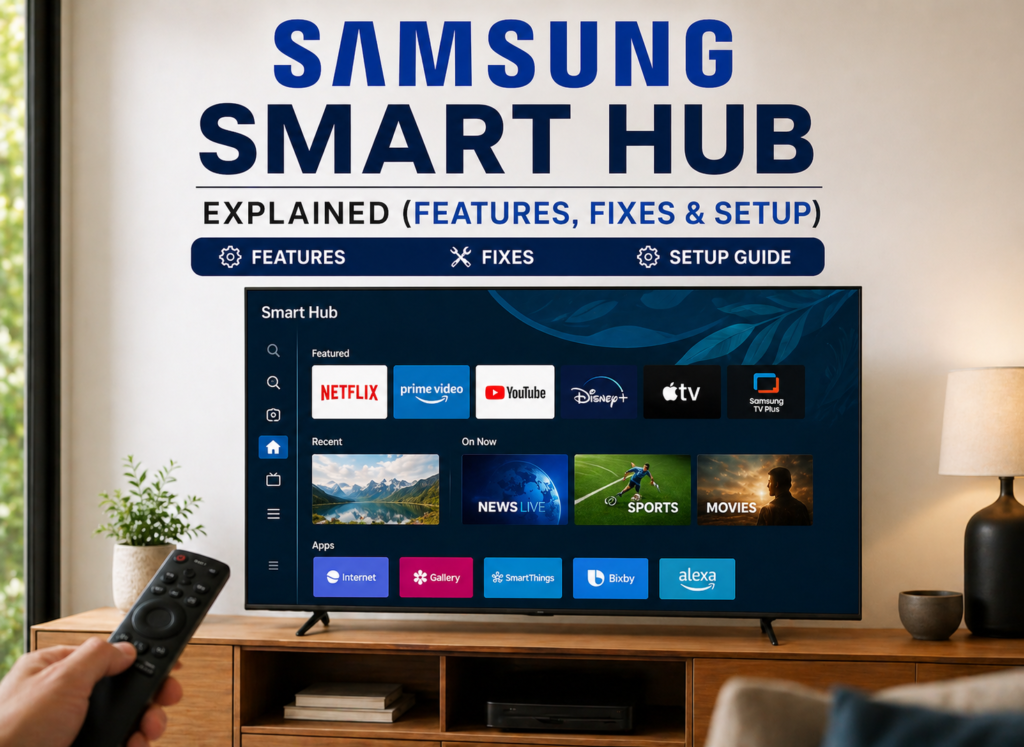
With their advanced functionalities, smart TVs have made home entertainment a much more enjoyable experience as you get apps, gaming features, smart home control capabilities and streaming all in one unit. With so much functionality to deal with, you definitely need an easy-to-use interface to manage everything in your living room.
And that’s when Samsung Smart Hub becomes helpful. It is an integrated interface of Samsung Smart TVs where you get direct access to apps, streaming channels, live TV broadcasts and any compatible connected device.
But at times, this interface faces some problems like slow loading, app crashing, freezing or inability to open. And this really makes you frustrated about the process.
Here in this article, you will learn about Samsung Smart Hub, how to set it up, troubleshoot problems and use its features effectively.
Table of Contents
What Is Samsung Smart Hub? (Complete Overview)
Samsung Smart Hub is the main user interface available on compatible Samsung Smart TVs that allows you to access apps, streaming services, live TV, games, and connected devices all in one single interface. You do not have to switch between devices anymore to view your content, play games, and use apps.
📺The main features of Samsung Smart Hub include:
- Application launcher – streaming services, playing games, launching applications.
- Content discovery – searching for different shows, movies, and other kinds of content.
- Management of connected devices – controlling compatible connected devices (e.g., lights, security systems).
Samsung Smart TVs operate on Tizen OS and form the platform for Smart Hub.
Smart Hub interface and its features can differ depending on the model of TV, its software, and region.
However, functionality of Smart Hub is available for some other Samsung smart devices, such as monitors and soundbars. The functionality differs between the devices.
Samsung Smart Hub official page
Key Features of Samsung Smart Hub
🔹 Unified Dashboard
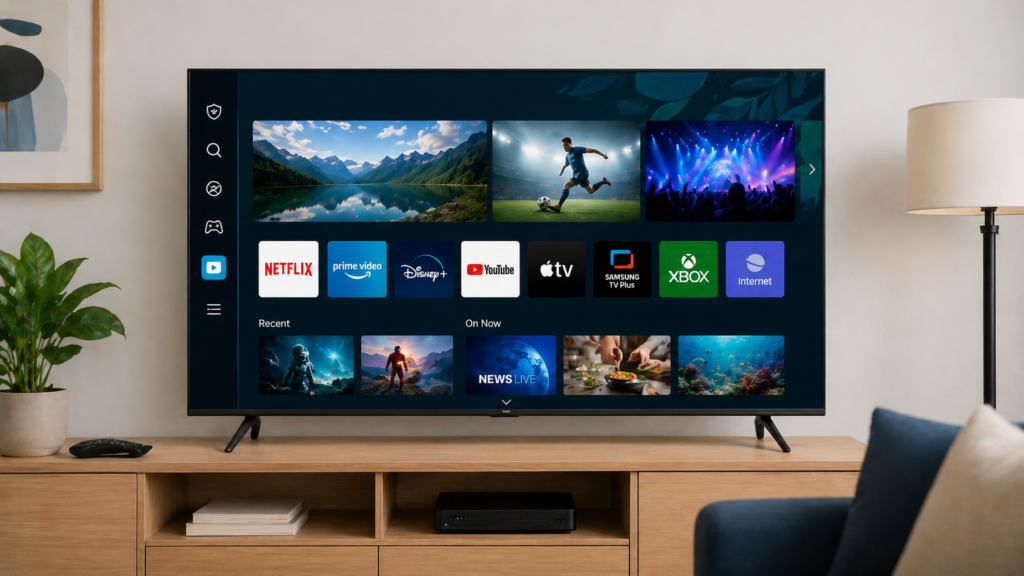
Through the Samsung Smart Hub application, it is possible to get to all applications, live TV broadcasts, connectable devices, and inputs in one interface. It makes switching between various entertainment resources easier.
🔹 App Store Access
Samsung smart TV offers an app store with a range of streaming services and entertainment apps that depend on the TV model and the geographical location of the user. It is possible to install, uninstall, and organize apps via the Smart Hub interface.
🔹 Voice Control Integration
Depending on the Samsung TV and its geographical location, it is possible to use either Bixby, Alexa, or Google Assistant. With the voice commands, it is possible to launch apps, control volume, and other compatible TV functions.
🔹 Smart Home Control
With Samsung SmartThings, it is possible to manage smart home devices with the help of compatible Samsung TVs. It is possible that you will be able to control lights, thermostats, cameras, and other smart home devices with the TV.
🔹 Personalized Recommendations
The Smart Hub service of Samsung can provide personalized recommendations for various content. It depends on the type of the TV and software that you have.
🔹 Multi-View & Screen Mirroring
With the multi-view, you will be able to show several sources at once on the screen of your TV. Also, screen mirroring allows sharing content from compatible mobile devices on your TV.
How Samsung Smart Hub Works
Samsung Smart Hub is the operating system that runs on Tizen OS, which is Samsung’s smart-TV platform. It serves as the interface for browsing apps, streaming services, settings, and compatible smart-home devices.
The operating system includes locally stored apps and cloud services. Netflix and YouTube, among others, can be downloaded on the television set. Streaming of content, software updates, and other online features rely on internet access.
User profiles are among the available features in some Samsung models to provide personalized content and recommendations. Features included in some models can differ from those available in others.
Internet connection will make using most of the features in Smart Hub smoother. Internet access is necessary for streaming, software updates, and smart-home device features, but some basic television functions will still be operational without internet.
How to Set Up Samsung Smart Hub (Step-by-Step Guide)
🔹 Initial Setup
Power up your Samsung TV and go through the initial setup process. Choose your preferred language and region and connect the TV to your Wi-Fi network. If possible, a 5 GHz connection should offer decent speed and performance if the television has good coverage from the router.
Using your Samsung account during this process is optional, however, if you do use it, it will allow you access to some more options.
🔹 Access Smart Hub
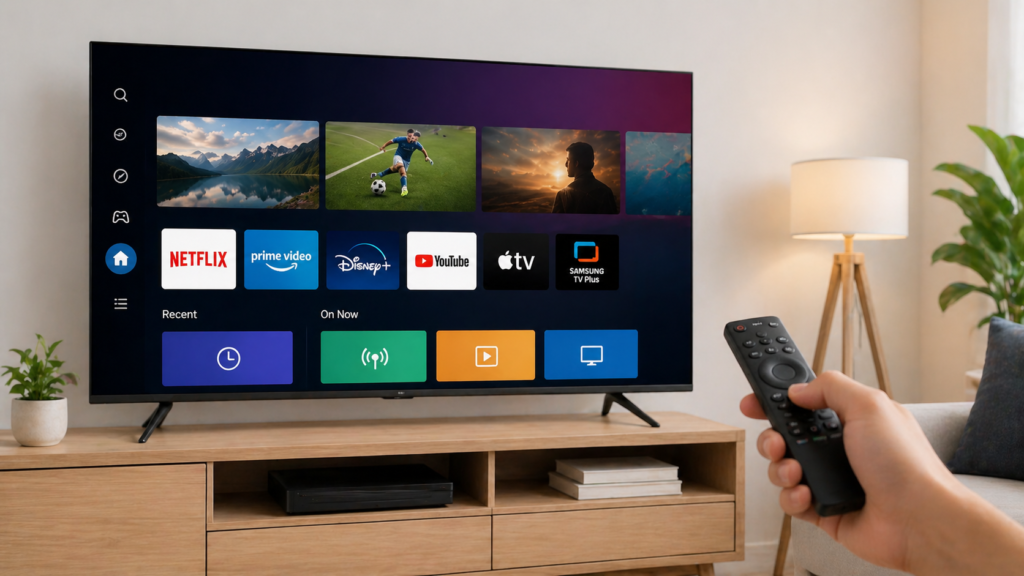
Press the Home button on your Samsung remote control to access Smart Hub. The Home button typically comes in the shape of a house and is situated in the central part of the remote control. Your first visit to Smart Hub may take a bit of time as the system loads the latest interface and featured content.
Your current apps are located at the bottom of the screen while the featured content and suggestions are shown in the main screen.
🔹 Install Apps
Go to the “Apps” section, which is indicated by an icon in your apps row. You will see Samsung’s app store with many categories. There are also features allowing you to search for a particular streaming service. Usually, popular apps, such as Netflix and YouTube, are featured, which makes it easy to find them.
The downloading process is quite straightforward – just select the app you need and press “Install”. The installation process shows up on the screen and when it finishes, the app becomes available in your Smart Hub automatically. Most apps are installed fast, but some bigger apps and with a slower connection may take several minutes.
🔹 Customize Layout
You can rearrange your apps by pressing the arrow key on your remote after selecting one. Then it is possible to move the app either left or right depending on how you organize your apps. Personally, I start with streaming services, then add games, and then utility apps.
It is also possible to pin your frequently used apps so that they would not change the place. It is also possible to remove certain apps from the row if you do not use them regularly.
🔹 Enable Voice Assistant
Go to Settings > General > Voice to activate voice control. You will either enable Bixby or link your TV to Amazon Alexa or Google Assistant according to your preference. The samsung tv voice control setup guide explains how the voice training is carried out by repeating some phrases for the TV to learn to understand your voice.
To test the voice control activation, just say “Hi Bixby,” or whichever wake command you chose, and then follow it up with commands such as “Open YouTube,” or “How is the weather?” Voice control is most effective in a noiseless environment, not amid any form of background noise.
For more details how to Set Up Samsung Smart Hub, Visit Smart TV technology explained
Common Samsung Smart Hub Problems & Fixes
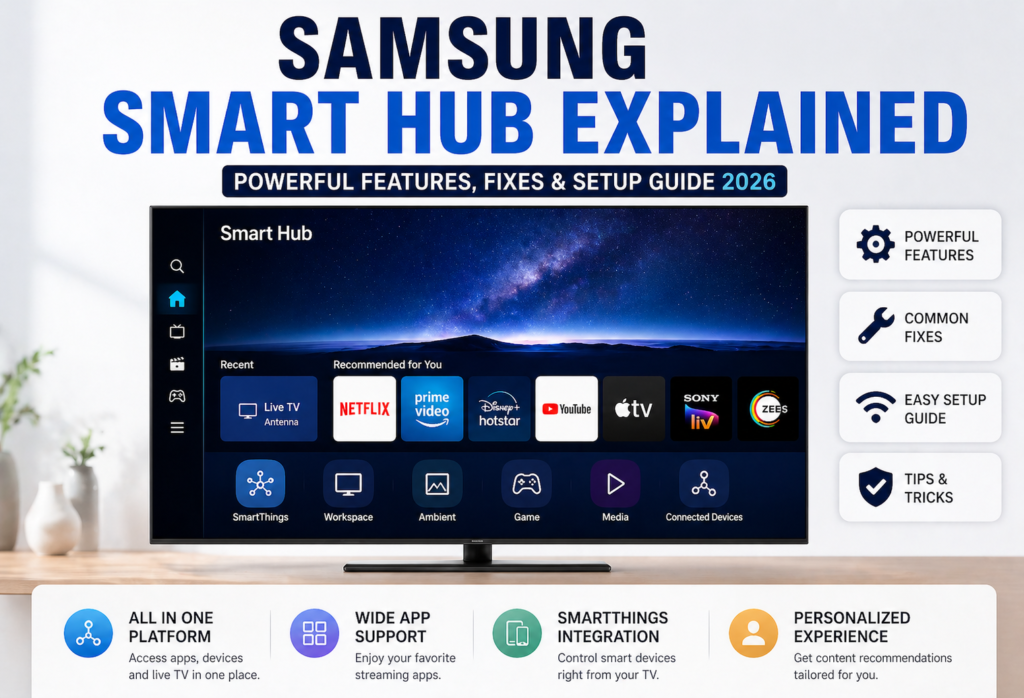
❌ Smart Hub Not Working
In case of problems with Samsung Smart Hub, restart your TV set first by disconnecting its power cord for around 30 seconds and then plugging it back and powering it up.
In case it doesn’t work, use the Reset Smart Hub function from the Settings menu -> Support -> Device Care -> Self Diagnosis -> Reset Smart Hub. The process may reset some Smart Hub settings.
❌ Apps Not Loading or Crashing
See if there is any update for the problematic application. In case of any further problems, remove the application completely and then install it once again to have a clean installation.
Menu items may vary depending on your TV model and TV software version.
❌ Slow Performance
Poor performance of your Smart Hub might occur due to network issues, software outdatedness, and temporary problems with the TV system. Restart your TV and see if you have any internet connectivity.
❌ Smart Hub Not Opening
Look for any TV software updates in Settings > Support > Software Updates. Should the problem persist, it could be helpful to try resetting your TV. Remember that doing a factory reset is always the last option as it wipes your settings and installed apps.
❌ Network Issues
Restart your router and then connect your TV to Wi-Fi by going to Settings > General > Network. In case your Wi-Fi connection is unstable, you can try connecting using Ethernet.
For more detailed troubleshooting guide visit Samsung TV troubleshooting guide
Tips to Improve Samsung Smart Hub Performance
Keeping your TV’s firmware updated An update of your TV’s firmware will have a large impact on the performance of Smart Hub. You need to keep your device updated because Samsung continuously comes up with bug fixes, new features, and compatibility upgrades. Set your TV to update itself automatically via Settings -> Support -> Software Update -> Auto Update.
Remove apps you don’t use anymore. Delete any app that you do not need anymore. Any installed application consumes memory as well as may run some background processes which will make your TV less responsive. Check your installed applications once every several months and delete those that are no longer needed by you.
Your WiFi network speed and stability The quality and speed of the WiFi network significantly influence the functioning of the Smart Hub. If you face problems with buffer or delays while using apps, think about getting a better internet plan or relocating your router closer to the TV. There are also WiFi range extenders that may be useful if the distance between your TV and the main router is significant.
Restart your TV at least once a week. Restarting helps to clear memory and reset the system. Restarting does not mean unplugging the TV but rather pressing the power button to shut it down for a minute and turn it on again.
To ensure the most stable connection, use the Ethernet cable instead of WiFi. There will be no interference and higher speed, which is critical when you are streaming videos in 4K or have lots of smart home functionality via TV.
Samsung Smart Hub vs Other Smart TV Platforms
A comparison between Samsung Smart Hub and other systems will reveal a number of notable differences regarding features and design. Android TV by Google is characterized by higher integration with Google services as well as a greater variety of applications. But it may be less intuitive and more complex than Samsung system.
Google TV, the latest smart TV platform introduced by Google, is centered around the search feature. It is quite helpful in the process of searching for content in multiple streaming services, but it might be overwhelming due to its complexity as compared to Samsung system.
LG webOS is probably the most powerful alternative to Samsung in terms of user experience. Both companies focus on simplicity and quick performance, but webOS employs cards rather than rows for presenting the information. The difference between LG Magic remote control and Samsung remote control is also significant.
In terms of the smartest television platform, the Samsung Smart Hub shines with its user-friendliness and efficiency. It is very easy to use, even without any manual since it does not freeze or crash as often as other platforms do. Apps load very quickly, and there is no need to wait or face any inconvenience.
On the negative side, Samsung’s apps library is not as extensive as that of the Android TV app ecosystem. Certain niche apps, or specific streaming services in certain regions, might be absent from Samsung Smart Hub. On the other hand, there are all major apps and streaming services available for those who need them.
Samsung Smart Hub Hidden Features
There are some hidden Samsung Smart Hub features which most people are not aware of. To access the service menu, you have to press Info + Settings + Mute from the remote within a few seconds. It displays all sorts of technical details regarding your TV and networking, which may help when looking into performance problems.
Quick access shortcuts can be very useful after you know them. The Home button when pressed and held will give you a quick menu for the frequently used applications. You can use the numbers from your remote to access some applications after assigning them through the settings.
Auto content recognition is a function that can tell what the user is watching on live TV or connected devices and can provide more information and/or relevant content. While this is very useful, sometimes people choose to turn it off due to privacy concerns. This function is found in the Privacy Settings tab in Smart Hub settings.
Ambient mode function turns the TV into a beautiful picture frame when you are not watching anything. Instead of just showing a black screen, it shows artwork, pictures, weather data, or even blends in with the wall color. Even though this feature isn’t really a secret, most users don’t know about it.
Who Should Use Samsung Smart Hub?
Beginners Newbies seeking a simplified way to access a smart TV will be pleased with Samsung Smart Hub. The menu of the system is not complex to the point where it overloads a novice with choices and confusing menus. The design is logical, and people will be able to watch their favorite movies within a few minutes of turning the TV on for the first time.
Families will appreciate the possibility of creating user profiles and using the parental control functions provided by the Smart Hub. Every family member will have the option of customizing the apps to his or her preferences. At the same time, parents will be able to control what children watch and what applications they can use.
Smart home enthusiasts will enjoy the SmartThings connectivity that will enable them to control their gadgets via their TV. If one has Samsung appliances and other smart home appliances, the Smart Hub may be a central control center that will always be easy to access in the living room.
Streaming lovers watch various movies will find useful the possibility offered by the Smart Hub to receive recommendations from a single place. Rather than using several applications to check new movies, one can see these recommendations on the main screen from all his/her services.
❓ FAQs
What is Samsung Smart Hub used for?
Samsung Smart Hub is an important tool that provides you with the interface to access all your streaming applications, live TV, and devices connected with your Samsung Smart TV. You can easily switch between various entertainment options on your Samsung Smart TV.
Why is Samsung Smart Hub not working?
Issues with Smart Hub are mostly related to internet connectivity issues, software compatibility, or cache file corruption. Most solutions include resetting your Smart TV, fixing internet connectivity issues, installing updates in the software, and deleting the Smart Hub cache.
How do I reset Smart Hub?
Settings > Support > Device Care > Self Diagnosis > Reset Smart Hub will help you clear cache data and reset the interface without affecting your downloaded apps. However, you will have to log back into your Samsung account.
Is Samsung Smart Hub free?
Yes, Samsung Smart Hub is completely free to use since it is pre-installed in Samsung Smart TVs. Despite being free, some paid streaming services that are used via Samsung Smart Hub must be purchased separately (Netflix, Disney+).
Can I install apps on Samsung Smart Hub?
Certainly! The smart TV’s Samsung Smart Hub has its own app store for downloading streaming services, applications, and games. Such popular apps as Netflix, YouTube, Prime Video, Disney+ and lots of others are there.
🔗Related Articles
- Smart Hub Is Being Updated? 6 Proven Fixes That Work Fast (Samsung TV)
- What Is a Smart Hub? Complete Guide for Beginners (2026)
- 10 Best Smart Home Devices for Beginners (2026 Guide)
- Best Smart Home Hubs in 2026 (Top Picks Compared)
- Arlo Smart Hub Review: Ultimate Guide (Is It Worth It in 2026?)
- Lutron Smart Hub Review (2026): Honest Verdict – Worth Buying or Not?
- Vivint Smart Hub Review (Full Breakdown – Is It Worth It in 2026?)
🏁 Final Verdict
One of the more intuitive smart TV platforms is Samsung Smart Hub. The biggest advantages of Smart Hub include the simplicity of its operation and stability since the platform never crashes or freezes the way some other platforms do. It makes sense to integrate the dashboard of apps, live TV and smart devices in one interface due to the fact that most users need them all at the same time.
The voice recognition technology works well with different virtual assistants, and the functions such as screen mirroring and smart home control provide useful features to the platform besides video streaming. Installation of apps and personalized suggestions work perfectly fine and are really helpful for discovering new movies.
However, Smart Hub has its limitations. Sometimes the application can face some difficulties with performance, especially if your television is an old one or if the connection speed is not very high. Also, in the sphere of applications, there is still something missing – Samsung TV does not have as many apps as Android TV has. Advanced users may also think that Smart Hub is too simplified for them.
Nevertheless, if you are looking for an ideal solution for your smart television, you should choose Samsung Smart Hub. For both novice and experienced users, it is easy and convenient enough to use. If you want to get access to the most popular streaming applications with ease, then Smart Hub is a right choice for you.