
Smart lights make everyday life more convenient—until they suddenly stop connecting. One day everything works perfectly, and the next your smart bulbs won’t respond to the app, voice commands, or your smart home system. Whether you’re using Alexa, Google Home, Apple HomeKit, or another platform, connection issues can be frustrating.
Whether you’re dealing with Wi-Fi smart bulbs that keep disconnecting, Zigbee lights that won’t respond, or Bluetooth lights with limited range, connectivity problems can quickly become frustrating. Issues with mobile apps, voice assistants, or smart home hubs can also prevent your lights from working as expected.
The good news is that most smart light connection problems have simple solutions. From checking your Wi-Fi settings to resetting devices and updating firmware, this guide covers the most effective troubleshooting steps to help restore your smart lights and keep them running reliably.
Table of Contents
Why Smart Lights Not Connecting
Knowing how the disconnection issue occurs will help you find solutions fast and avoid similar issues in the future. Disconnections occur due to several reasons that apply to all smart home devices.
Weak WiFi signal is the main reason behind disconnection of smart home devices. In order for the smart lights to perform well, they must be constantly connected to the internet. Poor signal means that your lights go offline right away.
Router overload occurs because of too many devices trying to get through your network. With so many modern households having more than 20 different devices, it becomes hard for the cheap routers to cope with the amount of data transferred. Your bulbs work fine during the day and become unresponsive at night time when everyone starts streaming and playing games.
5GHz vs 2.4GHz problems occurs in those who try to set up their smart bulbs for the first time. The majority of smart lights can only connect to 2.4GHz networks, but modern routers use both channels with the same name, making the connection impossible.
Outdated firmware leads to disconnections and app glitches. Manufacturers provide regular firmware updates that fix bugs and increase connectivity for smart bulbs. Out-of-date firmware is responsible for malfunctioning lights that do not respond to requests.
App glitches arise due to faulty software updates lead to a break of functioning connections. Once I witnessed how my perfectly good smart light suddenly stopped responding because of an update of the app with a new bug.
Power interruptions cause disconnection of WiFi smart bulbs and interrupt their function. Even power fluctuations are enough to shut down WiFi smart lights.
Hub placement issues negatively affect connectivity of Zigbee and other smart lights that use mesh technology.
Quick Smart Light Troubleshooting Checklist
Before trying advanced fixes, start with these simple troubleshooting steps. Many connection problems have quick solutions that take less than two minutes.
| Problem | Quick Fix |
|---|---|
| Bulb offline | Restart bulb |
| App not detecting light | Enable Bluetooth/location |
| Alexa not responding | Re-link account |
| Frequent disconnects | Use 2.4GHz WiFi |
| Slow response | Restart router |
| Zigbee issues | Move hub closer |
Fix #1 – Restart the Smart Bulb Properly
Resetting solves almost all connection problems as it eliminates temporary problems and makes the bulb reconnect to your network. The main thing about resetting is that you need to do it correctly; there are many people who just flip the light switch once and think it is enough.
Power cycling method can help you connect to the network. You just have to turn off the wall switch for 10 seconds, then turn it on again and wait 30 seconds until your bulb resets itself and connects to the network again.
Turning switch off/on correctly Turn the light switch off for at least 5–10 seconds before turning it back on. Switching the power too quickly may not fully reset the smart bulb, preventing it from entering pairing or reset mode. Following the manufacturer’s recommended power cycle timing can often resolve connection issues.
Factory reset combinations Differ by Brand, But Most Brands Require Switch Toggles. The Philips Hue bulbs require resetting through five toggles on/off. Similarly, the LIFX bulbs need five toggles in 10 seconds. The Sengled bulbs require 10 rapid toggles on/off.
It is important to check out the reset procedure in the user manual of the bulb or in the manufacturer’s website. The current models of some smart lights come with the reset button built-in.
Reason for Restart to Fix Connectivity Issues: The smart bulbs have small computers inside which may get stuck or have memory leaks. This problem can be solved with a simple restart.
Fix #2 – Check Your WiFi Network
WiFi connectivity problems make smart bulbs malfunction more often than faulty hardware. In most cases, smart bulbs will not connect to WiFi unless your network settings do not support or have weak signals.
2.4GHz vs 5GHz compatibility is another common mistake. While 2.4 GHz is used for most smart bulbs, new generation routers use the two frequencies on the same network connection. As a result, your mobile device would connect to the 5 GHz while smart bulbs connect to the 2.4 GHz band.
In this case, you may consider splitting WiFi bands or turning off the 5 GHz band for a few minutes before setting up your smart bulbs.
Router overload too many devices causes delays and inefficiencies. It happened to me at home since the installation of the 15th smart device made my smart lights slow and unstable. The issue becomes more apparent when dealing with cheaper routers that have difficulty working with 10 or more devices simultaneously.
Weak signal areas make your smart lights work inefficiently. Walls, metallic obstacles, and physical distance from the router contribute to the loss of the WiFi connection that makes your smart lights lose their connection.
Mesh network problems issues occur in houses with two or more WiFi access points, which sometimes make smart lights lose their connection.
Tips to improve your WiFi:
- Place your router centrally without any obstacles like walls around
- Have two different names for the 2.4GHz and 5GHz bands
- Use WiFi extender for big houses or places where WiFi is weak
- Change to a smart home router if you have more than 15 devices
Fix #3 – Update the Smart Light App & Firmware
Many people do not understand how outdated software can create connection issues. There are frequent updates of apps and firmware that increase connectivity and introduce new features. Using old versions of software will make your smart lights unstable.
Outdated firmware causing disconnects In most cases, firmware updates to fix disconnecting bulbs come from manufacturers who find some bugs in their products that result in frequent disconnects. Unlike cellphones that always have updates of their firmware, the smart bulbs are not capable of doing so automatically.
Bug fixes in newer app versions in updated apps can resolve connection issues as well. I personally experienced how the update of Kasa app fixed disconnecting smart light bulbs, and how the Govee app improved response times. Constant bug fixing in the development process of smart bulbs is made by the developers in order to deal with users’ issues.
How to check firmware updates There is a variety of ways to check your firmware updates depending on your manufacturer and app. Most of the apps provide a “Device Info” or “Settings” section where you can see current and new firmware versions.
Popular app update locations:
- Philips Hue: Settings > Software Update
- Kasa: Device Settings > Firmware Update
- LIFX: Settings > Device Info
- Govee: Device Settings > Firmware Upgrade
- Sengled: Me > Device Management
Many smart bulbs will only look for firmware updates if you initiate the process yourself. Schedule a monthly reminder to check for firmware updates on all your smart home apps. This easy step will solve all your firmware update issues with smart lights.
Pro tip: Always update smart light apps first, then check for firmware updates. App updates often improve the firmware update process itself.
Fix #4 – Reset Alexa, Google Assistant, or HomeKit
Sync issues with smart assistants lead to many frustrating smart light issues. Your bulbs function flawlessly within their native applications but fail to react to voice commands. The issue is easily fixed through linking and refreshing connections between the devices and accounts.
Alexa Fixes
Alexa not controlling lights Loss of control over the lights by Alexa occurs due to recent updates within the app or in your network. The Alexa app can no longer establish connection to your smart light accounts, while the lights work just fine in the apps they came from.
First try to solve the problem through the command “Alexa, discover devices”. Otherwise, you have to open the Alexa app, enter Settings > Smart Home > Skills and disable your smart light skill (Kasa, LIFX, etc.). Wait 30 seconds and then enable the skill again.
In case the problem persists, delete all your smart lights from Alexa first. Navigate to Devices > Lights and tap “Delete Device” on each bulb individually. Then link your smart light account anew and discover devices once more.
Google Home Fixes
Google Home smart lights offline The cause of your offline Google Home smart lights would normally be related to syncing your account. Simply open the Google Home app, press Settings > Works with Google, locate your smart lighting service, and press “Unlink Account.” Give it a little time, then reconnect and sync your devices.
Your Google Home may sometimes have trouble with naming the device properly. It may refer to it as “Light 1” instead of “Bedroom Light” for example.
Apple HomeKit Fixes
HomeKit smart bulb fix Fixing of HomeKit bulbs is a bit different because HomeKit does not rely on skills or account linking. HomeKit-enabled bulbs can be connected directly to your network.
In order to remove malfunctioning devices through the Home app, you need to hold the device for some time, tap “Settings,” then choose “Remove Accessory.” Reset the actual device following instructions provided by the manufacturer and add it again through the HomeKit code.
Fix #5 – Improve Router Placement
Placement of routers plays a crucial role in determining the signal strength for your smart home WiFi network. Regardless of how powerful the router is, if it is not placed properly, it would create weak areas, making your smart bulbs go out unexpectedly.
Thick walls and signal interference tend to obstruct WiFi signals more than most people think. Concrete walls, metals, and large appliances lead to dead zones where your smart lights cannot establish a strong connection. This was what happened in my kitchen as the smart lights were disconnected due to being located far from my router, behind my refrigerator and microwave.
Smart bulbs far from router they face problems with a poor signal strength. In particular, 2.4GHz WiFi has a better range but a narrower bandwidth than other options. You may have a decent WiFi signal according to your smartphone even in the furthest room, but your bulbs require a strong one.
Best router placement for smart homes There are some basic principles to follow when deciding on the best position for the router in a smart house. The ideal placement should be at a central point, elevated from the floor, and not near any metallic objects or walls.
Router placement examples:
Apartments: Position the router centrally in your living space, on either a shelf or table. Do not locate the router close to the kitchen (as appliances will interfere) or in entertainment units (metal parts block signals).
Large houses: Use mesh systems or Wi-Fi extenders for spaces larger than 2,000 square feet, as a single router will have difficulty covering these areas with sufficient WiFi signal strength for smart homes.
Multi-floor homes: Install your primary router in the middle level of the house, if you have one. Higher levels will be better served by high-placed routers, while basements require lower-placed routers.
Relocating my router from a corner cupboard to a central bookshelf instantly solved my smart bulbs’ connection issues. Lights which had never worked reliably in far-off rooms now responded reliably.
Fix #6 – Reduce Network Congestion
There are too many intelligent devices on the WiFi that slow down and disconnect. Intelligent houses have 20 or more devices that compete for the same bandwidth; cheap routers cannot cope with the loads of IoT devices.
Too many smart devices slowing networks will become apparent when your lights turn slow in hours of their peak activity. Your lights may work flawlessly at 6 AM but fail to react promptly at 8 PM.
Cheap routers struggling with IoT devices cannot handle connections coming from different types of IoT devices: intelligent lamps, switches, sensors, and cameras. While a router might work properly for smartphones and notebooks, it cannot handle IoT network problems.
Device prioritization is one of the features in the newest routers that allow setting the guaranteed bandwidth for the smart home devices. You need to look for QoS options in the settings of your router.
Tips to reduce congestion:
- Buy a new router that is built for smart homes (“IoT” or “smart home” should be mentioned in the features of the router)
- Remove unnecessary devices that are attached to your network – old mobile phones, tablets, smart gadgets
- Perform a network reboot every week by disconnecting your router for 30 seconds
- Employ an Ethernet connection for devices which require high bandwidth
Having a lot of smart home devices connected to your network is likely to overload your router and prevent it from performing at its best. Buying a new router can solve the issue.
Fix #7 – Reconnect Smart Lights from Scratch
In case other methods do not work, re-establishing the full connection with the smart lights will work wonders. The process involves wiping all saved settings and establishing new connections between your bulbs, apps, and network.
Step-by-step reconnection process:
- Remove device from app – Make sure you remove the bulb from the smart light app, rather than just disconnecting it.
- Factory reset bulb – Reset your bulb in accordance with the manufacturer’s instructions (this usually includes cycling the power switch several times). You should get confirmation of successful resetting (bulb flashes or changes colors).
- Restart phone – Restart your phone and clear all apps cache that may hinder the process of setting up the connection.
- Reconnect to app – Set up the bulb as a new device through the entire setup process.
- Re-enable voice assistant – In case you are using Alexa, Google, or HomeKit service, reconnect the bulb with those after completing the app setup.
It works best with such difficult devices that appear “connected” in the apps but do not react to the commands. The new installation process will be able to fix such an issue with the corrupt configuration.
In case none of these methods work, try the factory reset procedure for the smart light. It will restore all default settings and remove all the saved network information. In addition, it will fix all possible problems with pairing or connection.
Fix #8 – Solve Zigbee & Hub Problems
However, unlike WiFi smart light bulbs that connect directly to the router, Zigbee light bulbs utilize mesh networking which creates different types of connection problems such as mesh network gaps, bad placement of hubs, or interference of other wireless devices.
Zigbee mesh issues is when there are gaps or weak connections in the mesh network. Contrary to WiFi light bulbs that connect directly to your router, Zigbee light bulbs create mesh connections whereby each device increases the network range. This creates problems with connecting of Zigbee smart bulbs.
Hub placement is more important for Zigbee than for WiFi systems. Your Zigbee hub (Philips Hue Bridge or SmartThings hub) should be placed centrally covering distant bulbs. Hubs placed in the entertainment center or in corners create poor mesh connections.
Too many connected devices may overload the older Zigbee controllers because each controller can only support a certain number of devices – the Philips Hue bridge can accommodate a maximum of 50 lights while SmartThings controllers can accommodate more but slows down when there are 75+ connected devices.
Interference from WiFi channels with Zigbee is possible because the two technologies utilize the same frequency range to transmit signals. WiFi channels 11, 6, and 1 may interfere with the Zigbee channels 15, 20, and 25.
Popular Zigbee hubs and their quirks:
- Philips Hue Bridge: Most reliable, but only works for Hue ecosystem. Should be located within 30 feet of most distant bulbs.
- SmartThings: Works with multiple manufacturers’ products but may be temperamental with combination of different devices. Hub rebooting is recommended to improve functionality.
- Echo hubs: Embedded in recent versions of Echo products. Convenient, but not as functional as regular hubs.
If you encounter issues with Hue Bridge, make sure that it is located closer to center of your home and is connected through Ethernet cable instead of WiFi.
Fix #9 – Disable VPNs or Security Filters
VPNs and router security settings can interfere with communication between smart home devices and cause communication issues that are difficult to troubleshoot. Smart bulbs may connect at first but fail while in use.
VPN interference occurs because most VPNs prevent communication within the local network due to security reasons. Communication between your smart light app and the bulbs will be interrupted.
Firewall blocking smart home traffic affects routers with aggressive security settings. Some routers block IoT device communication by default, treating smart bulb network traffic as potentially dangerous.
Router security settings like AP isolation, guest network restrictions, or port blocking can prevent smart bulbs from working properly. These settings are designed to improve security but sometimes interfere with legitimate smart home devices.
Solutions for VPN and security issues:
- Turn off your virtual private network when installing your smart bulbs
- Make sure that the smart lighting applications can connect to your VPN’s local network
- Review firewall logs on your router to check for traffic blocking issues
- Disable AP isolation if you use the same local network both for your smart bulbs and phone
- Create different networks for internet of things and smart homes
If you have a virtual private network installed on your phone or tablet, it will block connections from apps to smart lighting devices via local network connection.
Note: Only disable security features temporarily for troubleshooting. Re-enable protections once you identify the specific setting causing problems.
Fix #10 – Replace Problematic Smart Bulbs
At times, there is hardware failure which leads to connection failures that cannot be solved by any kind of troubleshooting. Getting acquainted with the problems caused by faulty smart bulbs is important since it will save a lot of time.
Hardware failures present certain patterns in smart bulbs that help differentiate them from other problems such as network or software troubles. Problems with hardware continue even when the device is used on various networks, apps, and routers.
Cheap bulbs with unstable chips Bulbs that are cheap usually suffer from chip failure in 6-12 months of usage due to low-quality WiFi chips.
Signs of defective smart bulbs:
- Frequent disconnects that happen regardless of network conditions
- Flickering or dimming without commands, especially during network communication
- Overheating that makes the bulb too hot to touch during normal operation
- Random resets where the bulb returns to factory settings without user action
- Inconsistent behavior like working perfectly for days then failing completely
If your smart bulb keeps disconnecting or refuses to connect despite taking all suggested troubleshooting measures, there may be a hardware issue involved. In such cases, replacement is usually the fastest remedy to employ, provided that other smart devices are functioning normally within the same network.
Prior to changing smart bulbs, one should first check if they fail to work across several fixtures or locations. If this is the case, it is highly likely that there is something wrong with the hardware. However, if the problem occurs at particular places only, the network coverage should be considered as the source of the trouble.
It is advisable to change malfunctioning smart lights as soon as possible. Otherwise, faulty bulbs can disrupt other smart devices connected to the network.
Best Smart Lights for Reliable Connectivity
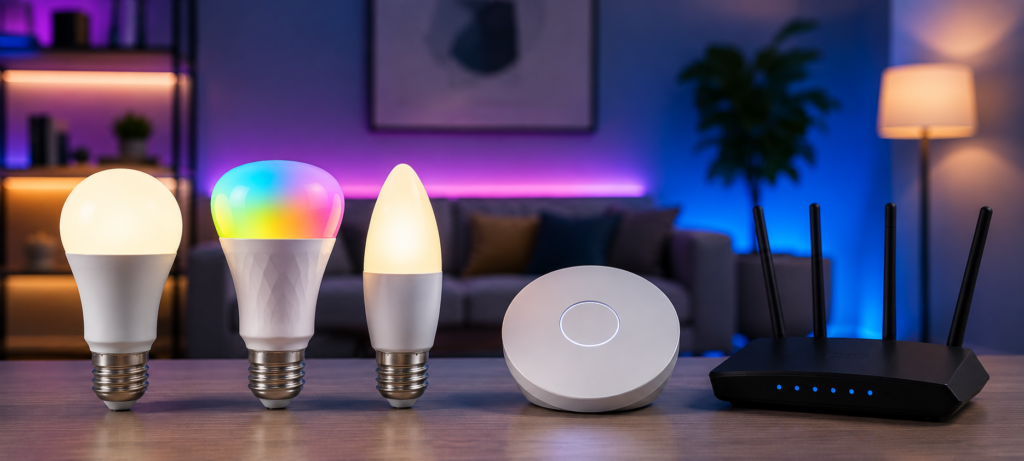
Selecting a reliable smart bulb will solve many connectivity problems associated with smart lights. Reliable brands provide stable connections, regular software updates, and greater integration with popular smart platforms, ensuring that you have a reliable product in the future.
Most Reliable Premium Option → Philips Hue
Hue bulbs don’t disconnect easily after installation. The Hue bulbs utilize a highly stable Zigbee mesh network, and the Hue Bridge allows users to install an independent smart lighting network separate from the existing WiFi network. The installation process is easy to implement, and the scale is good both for single bulbs and for the entire house.
The only drawback is high price – Hue bulbs cost 2-3 times more than alternative products.
Best WiFi Reliability → TP-Link Kasa
The Kasa smart bulbs provide great WiFi connection at affordable prices. The app is stable, there are frequent firmware updates, and the bulbs adjust to network changes easily. I’ve used the Kasa bulbs for over two years with only rare problems in their connection.
The installation process is easy and quick; moreover, the Kasa bulbs integrate easily with voice assistants. The 2.4GHz connectivity of Kasa is better than that of most WiFi bulbs.
Best Budget Reliability → Sengled
The Sengled bulbs have reliable connectivity for budget prices. They cannot compete with premium products in terms of reliability, but still, they are much better than some cheap bulbs. The application is OK, and firmware updates solve most problems.
Choose the Sengled bulbs when you need a lot of smart light bulbs but cannot afford to pay like for the Hue ones.
Best for Beginners → Wyze
Wyze bulbs are very easy to configure and take care of. The app is intuitive, and the bulbs do not get tangled in typical networking issues. They may not be the most feature-packed bulbs on the market, but they are great bulbs for newbies.
Price is superb, and customer support at Wyze is ready to assist in solving any possible problems with the bulbs. Great option to try out smart lighting without spending too much money.
Comparison factors:
- Connection stability: Disconnection frequency and responsiveness of the bulbs
- App reliability: Functionality of the app and timely app updates
- Voice assistant performance: Compatibility with Alexa, Google and HomeKit
More expensive smart bulbs are much more reliable than cheaper ones. Cheaper bulbs may turn out to be really costly in the long run.
WiFi vs Zigbee vs Bluetooth Stability
The knowledge about the various smart light technologies will help you select the most appropriate option based on your requirements.
WiFi Smart Lights
Easy installation but very reliant on the performance of the router. WiFi lights have direct connection with the home network and hence, their functionality is highly dependent on the performance of the router. Poor signal strength, interference from 2.4Ghz and overloaded routers affect WiFi smart lights.
Best for: Small houses and renting households looking for an easy installation without additional hardware.
Worst for: Big houses and places with poor WiFi signals.
Zigbee Smart Lights
Works best in large-scale smart homes. Zigbee builds mesh network topology whereby each additional bulb increases the coverage of the system. Professionally installed systems usually utilize Zigbee due to the fact that it is very reliable.
Best for: Large-scale installation, technical geeks, and those requiring reliability.
Worst for: Single-bulb installation, renters that cannot install hubs, and those desiring easy setup.
Bluetooth Smart Lights
Easy setup, but low range. Bluetooth bulbs plug right into your phone without needing any networking set up. But the range is only around 30 feet, and you cannot control them from a distance.
Best for: Bedrooms, single room installs, and people who don’t need to control the bulbs from afar.
Worst for: Full home setups, Alexa control, remote control capabilities.
Wi-Fi smart bulbs from reputable brands are simple to install and will perform reliably in most households. For larger systems comprising multiple devices, Zigbee systems are more scalable and stable. Bluetooth bulbs can be used for single room applications but are not recommended for full home smart lighting.
❓FAQs
Why do smart lights keep disconnecting?
Smart bulbs can disconnect because of poor WiFi coverage, router saturation, outdated firmware, and even power disruptions. Network issues are often the reason for bulb disconnections and not the bulbs themselves.
Do smart bulbs need 2.4GHz WiFi?
Generally, the vast majority of WiFi-enabled smart lights will work with only 2.4GHz WiFi signals and cannot be paired with 5GHz networks. You should make sure that your router does not broadcast both bands with the same name.
Why won’t Alexa find my smart bulb?
Your Alexa cannot detect your smart bulbs in case account linking is disabled or your skills have been disconnected from each other. You should try using the voice command “Alexa, discover devices” first. If nothing happens, disconnect and reconnect the skill of your smart light through the Alexa app.
Can too many smart devices slow WiFi?
Yes, having too many smart devices may cause router overload, resulting in slow connection and disconnects. Budget routers cannot handle 15+ connected devices. Get a smart home compatible router or decrease the number of connected devices.
Are Zigbee bulbs more reliable?
Generally, Zigbee bulbs are more reliable than WiFi bulbs as they create their own independent network. However, Zigbee bulbs cost more and require more hubs. WiFi bulbs will suffice for any house with proper router coverage.
How long do smart bulbs last?
Smart bulbs have a lifespan of 15,000-25,000 hours, just like common LED lights. Usually, the electrical components wear off first. Low-quality smart bulbs may experience connectivity problems at 1-2 year mark, while high-quality bulbs may last 5 years or more.
🔗Related Articles
- Smart Lighting System in the USA: Complete 2026 Buyer’s Guide
- How to Set Up Smart Lighting at Home (Step-by-Step Guide)
- 9 Best Smart LED Light Strips (2026 Review)
- Best Philips Hue vs LIFX vs TP-Link Kasa Smart Bulb Comparison for 2026
- Gaming Room Smart Lighting Setup (RGB Guide 2026)
- Best Smart Lighting for Bedrooms (2026 Setup Ideas)
- Smart Lighting for Small Apartments (Budget Setup Guide 2026)
- WiFi vs Zigbee vs Z-Wave: Which Lighting System Is Better? (2026 Guide)
🚀Conclusion
The vast majority of connectivity problems experienced with smart lights happen due to usual reasons like Wi-Fi issues, wrong pairing, firmware problems, or lack of coverage – not because of defective bulbs. In many cases, resetting the device, checking your Wi-Fi connection, and updating the app and firmware will be enough to fix the issue.
To get the best results from your smart light system:
- Pick proven and reputable smart bulbs.
- Make sure that you have good 2.4GHz Wi-Fi coverage in your house.
- Update your app and device firmware regularly.
- If you use multiple smart home gadgets, consider getting a decent router.
In this way, you’ll be able to fix most of your connection problems and benefit from all the features of your smart light system.