
Do Smart Home Devices Hinder Wi-Fi Performance? It is something that comes into mind when your smart home becomes cluttered with connected devices. Think about this scenario where you spend a whole weekend configuring your smart home with smart lights, a few smart plugs, a doorbell cam, two security cams, a smart thermostat, and a speaker in your kitchen. All works fine in the beginning. After a few weeks, however, your laptop starts acting slow, you can’t watch Netflix without buffering, and it takes forever for your phone to load a web page.
It would be natural to think that “it is all these smart devices that are causing problems with my Wi-Fi.”
However, this is not always true.
The point here is that many smart home devices connected to Wi-Fi will not necessarily make your Wi-Fi slower by themselves. Rather, there are some other reasons that cause the problem – namely, bandwidth consumption, router limitations, too many connections, wireless interference, Wi-Fi coverage problems, high bandwidth camera, bad router placement, etc.
Learning the reasons for slow network performance is the key to solving the problem. In this guide, we will tell you what causes problems with smart home Wi-Fi and which devices use too much bandwidth.
Wi-Fi performance depends on several factors, including the distance between your device and router, the Wi-Fi frequency being used, physical obstacles, interference, and the amount of bandwidth other devices are consuming. Google’s Wi-Fi troubleshooting guide explains these common causes in more detail.
Table of Contents
How Smart Home Devices Actually Use Wi-Fi
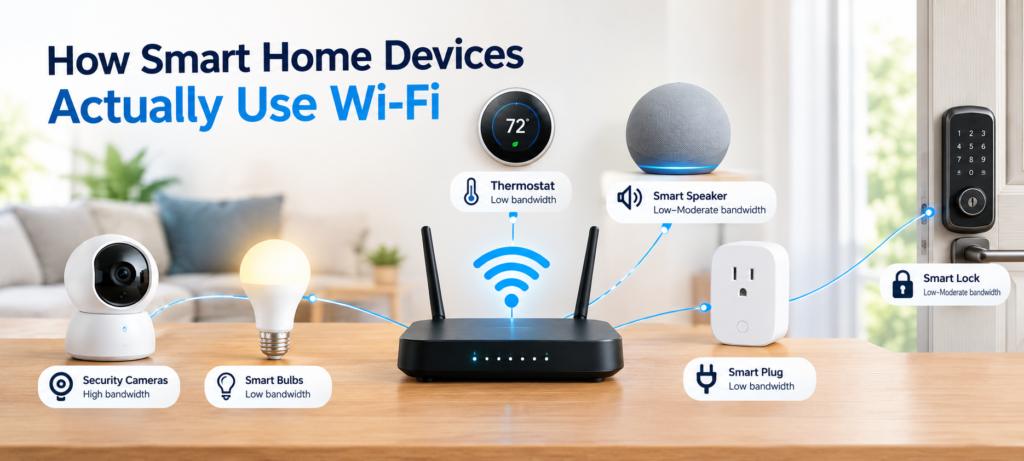
Not all Wi-Fi-enabled devices are always uploading or downloading information. This is something people misunderstand about the problem with smart home Wi-Fi, and it needs to be addressed immediately.
Imagine your entire network is a highway. There are some devices that are like parked cars, which means they’re sitting on the highway but aren’t moving. Other devices can be likened to delivery trucks that make trips all day long.
Here is an easy classification system for categorizing your smart home devices:
Low-Bandwidth Devices
These devices send very small amounts of data, mostly just status updates and short commands:
- Smart plugs
- Smart bulbs
- Smart switches
- Motion sensors
- Door and window sensors
- Thermostats
Medium-Bandwidth Devices
These use more data, especially when actively in use:
- Smart speakers
- Smart displays
- Robot vacuums
- Smart appliances
High-Bandwidth Devices
These can put real pressure on your network, especially when running continuously:
- Security cameras
- Video doorbells
- Smart TVs
- Streaming devices
As you can see, the most important thing here is whether your device is connected idly to your Wi-Fi network or it consumes bandwidth constantly transferring data. While smart light bulbs are always connected to Wi-Fi but do not transfer any data until a user triggers it to, security cameras transfer data all the time as they are streaming video footage into the cloud.
smart bulb or sensor. When several devices are actively using the network at the same time, congestion can reduce available bandwidth and affect performance. Google’s explanation of network congestion and bandwidth
Do Smart Home Devices Slow Down Wi-Fi or Internet Speed?
This is essentially the core of the matter; therefore, I would like to make one thing clear: internet speed is not equal to the quality of Wi-Fi.
Internet speed is the speed you get from your Internet Service Provider through your modem. The quality of Wi-Fi is how well this connection is delivered through your home via your router.
You might have a super fast internet plan, yet still have a very poor quality of Wi-Fi due to the following reasons:
- An old or low-powered router
- A bad signal in some areas of your house
- Interference by neighbor networks or other electronic devices
- Having too many devices which exchange data simultaneously
- Poor wireless configuration
Therefore, when people are wondering “do smart devices slow down internet?” – the real answer is the following: yes, they can slow down your internet but not always; the number of devices will not tell you anything here.
There is one example that I want to give you, it is rather helpful for better understanding: 40 smart plugs and light bulbs that are not used can use less bandwidth than only 4 security cameras working around the clock and transmitting HD video. It is not the number of devices; it is their activities that matter.
Smart home internet speed problems depend on activity.
Which Smart Home Devices Use the Most Bandwidth?
If you want to understand smart home Wi-Fi congestion, it helps to have a clear picture of where the real data demand is coming from. Here’s a practical ranking:
Highest Bandwidth Usage
Security cameras — especially:
- 2K and 4K cameras
- Cameras set to 24/7 cloud recording
- Multiple cameras running simultaneously
These are by far the biggest consumers on most smart home networks.
Medium Bandwidth Usage
- Video doorbells (especially those recording HD video)
- Smart displays (when streaming video content)
- Streaming devices (Roku, Fire Stick, Apple TV)
- Smart TVs actively streaming
Low Bandwidth Usage
- Smart speakers (mainly during active voice commands or music playback)
- Robot vacuums (occasional mapping data and status updates)
- Smart appliances (periodic status checks)
Very Low Bandwidth Usage
- Smart plugs (simple ON/OFF and status signals)
- Smart bulbs (brightness, color, and ON/OFF commands)
- Sensors (motion detected, door open/closed)
- Thermostats (temperature readings and schedule data)
It’s worth noting that actual usage varies quite a bit depending on the specific model, video resolution, compression technology, whether cloud recording is enabled, and how often the device is actively used. Smart cameras bandwidth, in particular, can range from modest to very significant depending on these factors. A smart plug’s Wi-Fi usage, on the other hand, is so small it’s almost not worth measuring.
Why Security Cameras Can Affect Your Wi-Fi
A security camera definitely needs to be called out separately because it is quite unique compared to all other home devices — and this is something many people don’t know.
So what does a security camera do when it is active?
- It constantly records video and transfers the data somewhere (cloud or local storage)
- The higher the resolution of the camera, the bigger amount of data is transferred each second (a 4K camera transfers way more data than a 1080p one)
- If your recording is done in the cloud, then it generates constant outgoing network traffic
- Many cameras generate multiple streams at once (four cameras are four streams)
- The live view from the app generates additional network traffic along with the recording
A practical example: Four 4K cameras recording continuously can put significantly more pressure on your network than literally dozens of smart bulbs, plugs, and sensors combined. The difference is that dramatic.
There are a few specific things to watch with cameras:
- Upload bandwidth: Cameras consume your upload speed, not just download — and many home internet plans have much slower upload speeds
- Wi-Fi airtime: Cameras continuously occupy wireless bandwidth, leaving less available for other devices
- Router processing: Your router has to handle all that video data in addition to everything else
- Distance from router: A camera far from the router may have a weaker, less stable connection, which can cause reconnections and additional overhead
If you’re looking for cameras that balance performance with network efficiency, take a look at our guide to the Best Smart Security Cameras for recommendations based on real-world usage.
What About Smart Plugs, Bulbs and Sensors?
If you’ve just begun using a smart home system and are concerned about the effects of installing smart plugs or light bulbs that could clog up your network – don’t worry. Here we have mostly good news for you.
The vast majority of simple IoT devices use an extremely low amount of bandwidth because their function is limited to transmitting and receiving small commands and updates on their condition. We’re talking about minuscule amounts of data being transmitted.
Here’s what these devices are actually communicating:
- Smart plug: “Turn on,” “Turn off,” “Power status currently”
- Smart bulb: “Set light to 70%,” “Change color,” “Turn off”
- Motion sensor: “Motion detected,” “No motion”
- Thermostat: Current temperature, set temperature, current mode
These are small packets of data being transmitted periodically, and not constantly. Therefore, having 20 smart plugs connected to your network is basically no different from having 5.
Wi-Fi usage of smart plugs and smart light bulbs is so negligible that they probably won’t cause any network-related issues in your household. The problem, if there is one, comes from another source.
How Many Smart Devices Can a Wi-Fi Router Handle?
This is one of the most frequent queries that people ask, and there isn’t any single accurate answer — hence, I would prefer to give you a useful answer over an inaccurate figure.
The practical limit of your router depends on several things:
- Hardware capabilities of the router and its processing speed
- Generation of Wi-Fi it is compatible with (Wi-Fi 5, Wi-Fi 6, etc.)
- Number of simultaneous connections it can handle
- Total data transfer capacity of those devices
- Traffic distribution on both 2.4GHz and 5GHz frequency bands
- Firmware and software optimization of the router
- Bandwidth of your internet connection provided by your ISP
- Interference levels in wireless communication
It is here where the difference between “the number of connected devices” and “the number of bandwidth-hungry devices” lies, which is something often misunderstood by people.
Even an advanced and efficient router can easily support 50 or 60 IoT devices operating at low data rates like light bulbs, switches, sensors, and smart thermostats. However, if you connect a few security cameras to your network, one or two streaming smart TVs, and also some computers running simultaneously, there may be a problem.
When wondering about having “too many smart devices on Wi-Fi,” consider the following: how many of them are actually consuming bandwidth simultaneously. The former becomes much more important than the latter in choosing a Wi-Fi router for smart homes.
2.4GHz vs 5GHz: Which Is Better for a Smart Home?
Your router almost certainly broadcasts on two different frequencies — 2.4GHz and 5GHz — and which one your devices connect to actually matters quite a bit for your smart home network.
2.4GHz is generally better for:
- Devices that need to reach further distances or through more walls
- Basic IoT products like smart plugs, bulbs, sensors, and thermostats
- Devices that don’t transfer large amounts of data
- Older smart home products that only support this band
5GHz is generally better for:
- Higher bandwidth needs
- Devices that are physically close to the router
- Streaming, video, and cameras (when signal strength allows)
- Smart displays and some newer smart home products
There is an important thing to remember here: switching all to 5GHz does not mean everything will be fine. The 5GHz frequency has a reduced range and cannot penetrate the walls as well. When you forcibly switch a device to 5GHz, but it is two rooms far from your router, it can work worse than on 2.4GHz.
A wiser way would be to use the dual-bands intelligently: allocate your high-bandwidth and close devices to 5GHz, and let all low-bandwidth ones which are further from the router stay at 2.4GHz.
If you want to learn more about that subject, feel free to take a closer look at our detailed guide: 2.4GHz vs 5GHz for Smart Home Devices: Which Is Better?
Can Too Many Smart Devices Cause Wi-Fi Congestion?
Wi-Fi congestion is indeed real; however, many people confuse the two. Wi-Fi congestion does not necessarily arise as a result of many devices connected to the network; rather, it arises because many devices attempt to connect to the network at once.
Sources of real Wi-Fi congestion in a smart home include:
- Multiple devices connecting to and disconnecting from the network simultaneously
- Other Wi-Fi networks nearby that use the same or similar channels
- Bluetooth devices generating low levels of interference
- Home appliances such as microwaves that interfere with the 2.4 GHz range
- Congested 2.4 GHz channels in apartments and crowded neighborhoods
- Concurrent file downloads when there are camera uploads and television streams
The important distinction: Device count alone isn’t the problem. Simultaneous network activity is usually the bigger issue.
This is the reason why smart home Wi-Fi interference is random — your network functions just fine throughout the majority of the day, but slows down significantly during evenings when all your devices are being used to stream, upload from cameras, and the smart speaker is playing music. Not a coincidence at all, this is a result of congestion.
Understanding this will help to solve problems faster as the solution for congestion is quite different than weak signal and slow Internet speed.
Does Matter Increase Wi-Fi Usage?
With Matter being introduced into the sphere of smart homes, there is also an ongoing discussion whether using devices based on the technology will lead to higher Wi-Fi usage. Let me assure you – it is not necessary, and I will explain why.
Matter is a standardization of an application for smart homes – the way in which devices from various brands may communicate with each other. It is not an independent wireless technology that will add extra load to your network.
Here’s how it actually works:
- Some Matter devices connect via Wi-Fi
- Some Matter devices connect using Thread, which is a low-power wireless mesh network protocol that exists independently of your Wi-Fi
- The term “Matter” doesn’t mean that all devices are constantly transferring information over the internet
- There are setups where Matter makes for more localized communication, where devices talk directly to each other without everything going via the cloud, and thus decreases reliance on internet bandwidth
So please do not confuse the matter in thinking that having more Matter devices necessarily means that Wi-Fi will get slower. That’s much more complicated than that.
If you want to know more on the topic, you may find these articles useful:
- What Is Matter in Smart Homes?
- Best Matter Smart Home Devices
- How to Build a Matter Smart Home
Signs That Your Smart Home Is Affecting Wi-Fi Performance
First of all, before you pull the plug on everything, it’s useful to know what to look out for. Here are some signs that could point to a possible issue with your smart home setup:
- Slow internet particularly when security cameras are recording or watching video feed
- Frequent buffering even on a fast internet service plan
- Disconnection and subsequent reconnections of smart devices
- Delayed response time when sending commands to smart devices (such as turning lights off or on)
- Security cameras suddenly losing connection during recordings
- Repeated reconnection attempts with devices to the router
- Spotty wi-fi quality during certain hours of the day (most likely evening hours)
- Dramatic drop in upload speed when tested
However — and this is important — these symptoms can also come from completely unrelated causes:
- ISP connection problems
- Overheating or failure of your router
- Poor wi-fi coverage in certain spots in your home
- DNS resolution problems
- Outdated device firmware
- Neighboring network interference
So, before you jump to any conclusions, investigate further to see whether your smart devices are really causing an issue.
How to Find Which Smart Device Is Causing Problems
If you suspect something on your network is causing problems, here’s a straightforward way to figure out what it is.
Step 1: Check Your Router’s Connected Device List
Log into your router’s admin panel and look at all the connected devices. Identify:
- All security cameras
- Smart TVs
- Computers and phones
- Smart hubs or bridges
- Any unfamiliar devices
Step 2: Look for Bandwidth Monitoring
Many modern routers include basic traffic monitoring. Check if yours shows:
- Download and upload usage per device
- Overall traffic patterns over time
- Which devices are most active
Step 3: Temporarily Disconnect High-Bandwidth Devices
Start with the most likely suspects — cameras and streaming devices. Disconnect them one at a time.
Step 4: Test Your Wi-Fi Again
After disconnecting a device, run a speed test and pay attention to:
- Download and upload speeds
- Latency (ping time)
- Overall stability over a few minutes
Step 5: Check Upload Speed Specifically
This is especially important for cloud-connected security cameras. Run a speed test and look at your upload number. If it’s much lower than expected, cameras may be saturating your upload connection.
This process won’t always give you a definitive answer, but it will usually point you in the right direction for improving smart home network performance.
7 Ways to Improve Wi-Fi for a Smart Home
If your network is genuinely struggling, here are seven practical things you can do — in roughly the order I’d try them myself.
1. Upgrade an Old Router
If your router is more than four or five years old, it may simply not be built for the demands of a modern connected home. Older hardware often lacks the processing power and connection management that today’s smart homes need. A Wi-Fi 6 router, for example, handles multiple simultaneous connections much more efficiently than older models.
2. Place the Router Correctly
Router placement has a huge effect on performance. Keep your router:
- In a central location relative to where you use devices most
- Elevated — on a shelf, not on the floor
- Away from large metal objects, thick concrete walls, and appliances
- Out in the open, not inside a cabinet or closet
3. Use 2.4GHz and 5GHz Strategically
Don’t let every device pile onto the same band. Put high-bandwidth, nearby devices on 5GHz. Let low-bandwidth, distant devices use 2.4GHz. Some routers let you label these bands differently so you can control which devices connect to which.
4. Move High-Bandwidth Devices Closer When Possible
If a camera or smart TV is far from your router and struggling to maintain a strong connection, moving it physically closer — or positioning a router or access point nearby — can make a real difference.
5. Reduce Unnecessary Cloud Traffic
If your cameras support local storage (an SD card or a local NVR), you might not need 24/7 cloud recording. Switching to motion-triggered recording rather than continuous recording can also dramatically reduce your upload traffic.
6. Use a Mesh Wi-Fi System for Larger Homes
If your issue is coverage — dead zones, weak signal in certain rooms — a mesh system can help by distributing your Wi-Fi more evenly. This isn’t a fix for bandwidth problems, but it’s excellent for coverage problems.
7. Keep Firmware Updated
Both your router and your smart devices should be running current firmware. Updates often include performance improvements, bug fixes, and better connection handling. It’s a simple step that’s easy to overlook.
When You Should Consider a Better Router or Mesh Wi-Fi
Not every Wi-Fi problem requires new hardware, so I want to be clear: don’t rush out and buy a new router just because you have a lot of smart devices.
That said, an upgrade genuinely makes sense if:
- Your home is large or spread across multiple floors
- You have several dead zones or areas with very weak signal
- You have dozens of connected devices and several high-resolution cameras
- Multiple people in your home are streaming, gaming, or working from home simultaneously
- You experience frequent and unexplained disconnections
- Your current router is more than four or five years old
When you’re deciding what to upgrade to, the distinction between a router upgrade and a mesh system matters:
- Router upgrade: Gives you better hardware, more processing power, and support for newer Wi-Fi standards. Best when your current router is the bottleneck and your coverage area is manageable.
- Mesh Wi-Fi system: Adds multiple access points throughout your home for more even coverage. Best when the core issue is signal reaching all areas of your home, not just raw speed or capacity.
Knowing which problem you actually have will save you money and frustration.
Common Mistakes That Make Smart Home Wi-Fi Worse
Sometimes the network problems people blame on their smart devices are actually self-inflicted. Here are the mistakes I see come up most often:
- Putting the router inside a cabinet or closet — walls and enclosed spaces block signal significantly
- Using an outdated router and expecting it to handle 30+ connected devices without issues
- Connecting every device to the same band and creating an overcrowded, congested channel
- Ignoring camera upload traffic — not realizing that 24/7 cloud recording consumes upload bandwidth constantly
- Installing cameras far from the router without providing a closer access point or signal source
- Using low-quality Wi-Fi extenders that create a separate, weaker network rather than seamlessly extending coverage
- Creating unnecessary extra Wi-Fi networks that add confusion and management overhead
- Ignoring firmware updates for both the router and individual smart devices
- Assuming a faster internet plan will fix weak Wi-Fi coverage — more speed from the ISP doesn’t help if the signal can’t reach the device in the first place
FAQ: Smart Home Devices and Wi-Fi
Do smart home devices slow down Wi-Fi?
Not automatically. It depends on what those devices are doing. High-bandwidth devices like cameras and streaming devices have more impact than simple sensors or bulbs.
Do smart plugs slow down Wi-Fi?
No, not meaningfully. Smart plugs send tiny ON/OFF and status commands. Their Wi-Fi usage is so small it’s essentially negligible on any home network.
Do smart bulbs use a lot of Wi-Fi?
No. Smart bulbs only transmit small commands for brightness, color, and power state. They stay connected to Wi-Fi but consume very little actual bandwidth.
Do security cameras slow down internet?
They can, especially 4K cameras with 24/7 cloud recording. Cameras continuously upload video, which consumes your upload bandwidth and can affect overall network performance.
How many smart devices are too many for Wi-Fi?
There’s no universal number. It depends on your router and how much data those devices are actively transferring. Ten cameras may cause more problems than fifty smart bulbs.
Does Matter slow down Wi-Fi?
Not inherently. Matter is a communication standard, and some Matter devices use Thread rather than Wi-Fi. It doesn’t automatically increase bandwidth usage.
Should smart home devices use 2.4GHz or 5GHz?
Most basic IoT devices work well on 2.4GHz for range reasons. High-bandwidth devices near the router benefit from 5GHz. Using both bands strategically is the best approach.
Do smart devices use internet when they are idle?
Most use very little. They may send occasional status pings, but idle smart plugs, bulbs, and sensors consume almost no meaningful bandwidth.
🔗Related Articles
- 2.4GHz vs 5GHz for Smart Home Devices: Which Is Better?
- Best Smart Plugs 2026: Complete Buying Guide
- 9 Best Smart Bulbs in 2026 (USA Guide) – Top Smart Lights
- Smart Home Setup Under 200$ (2026 Budget Guide): Build a Smarter Home for Less
- 7 Best Smart Speakers Under $100 for Alexa & Google Assistant
- Smart Home Security Systems in 2026 (Expert Buyer’s Guide)
- What Is Matter in Smart Homes? Complete Beginner’s Guide (2026)
- Best Matter Smart Home Devices in 2026: Top Picks for Beginners
- How to Build a Matter Smart Home From Scratch (2026 Beginner’s Guide)
Final Verdict: Do Smart Home Devices Really Slow Down Wi-Fi?
Here’s the honest, direct answer: usually, no — not on their own.
Low-bandwidth devices like smart bulbs, plugs, and sensors are unlikely to cause any noticeable slowdown, even if you have a lot of them. The real concerns are multiple security cameras running at high resolution, heavy video streaming across several devices, constant cloud uploads, weak Wi-Fi coverage that was already marginal, aging router hardware, and network congestion from too much happening at once.
The biggest shift in thinking I’d encourage is this: stop counting your smart devices and start looking at what they’re actually doing on the network. That’s where the real answers are — and that’s where the real solutions are too.